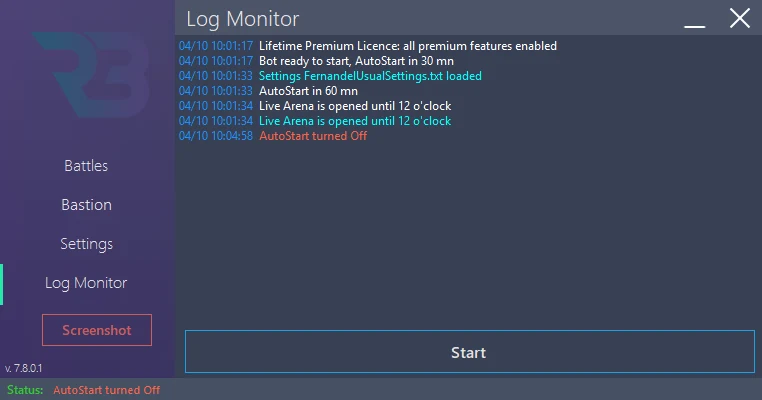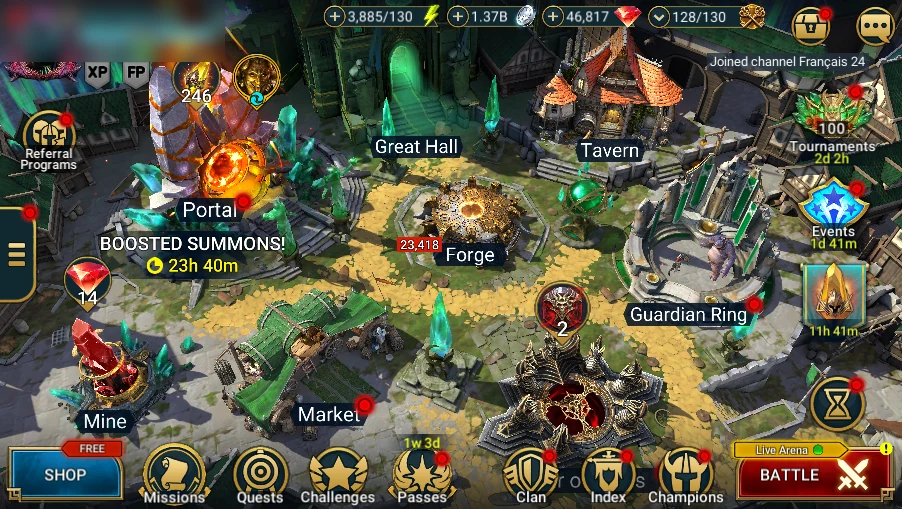
Welcome to the RSLBot guide
English version — RSLBot 7.8.0.1
Each section is illustrated with RSLBot screenshots and, where useful, RAID screenshots. Button and menu names remain as displayed in the current RSLBot interface.
RSLBot automates many activities in RAID: Shadow Legends: quests, Campaign, dungeons, arenas, Clan Bosses, champion management and equipment management. It controls the game interface for the procedures described here. It therefore does not replace correct game and Windows configuration.
RSLBot helps with repetitive RAID tasks. In its statement dated 31 May 2021, Plarium explains that it tolerates the autoclickers it describes as not speeding up battles, not interfering with the game client and not fully developing an account automatically. It distinguishes them from cheating tools such as Cheat Engine, whose use is prohibited. See Plarium's statement on autoclickers.
For Hydra and Chimera, configure teams, targeting and skills using options available in RAID. Do not combine RSLBot with a tool that artificially speeds up battles or alters game data.
This historical tolerance is not a guarantee for the future: on 27 August 2025, Plarium reiterated that using third-party assistance applications may have consequences for an account. Its policy may change; use RSLBot with that understanding and comply with RAID's rules. See the Community Manager's reply and Plarium's Terms of Use.
RSLBot GUIDE
Features by licence
This table was checked against production master f86951a, RSLBot 7.8.0.1, fetched on 3 October 2026. It distinguishes permanently included features from rotating promotions. Regular is the name used in RSLBot for the standard paid offer.
| Feature | Free | Regular | Premium |
|---|---|---|---|
| Campaign | Yes | Yes | Yes |
| Ice Golem, Spider, Dragon and Fire Knight | Yes | Yes | Yes |
| All other dungeons offered by RSLBot | Rotation | Yes | Yes |
| Classic Arena | Yes | Yes | Yes |
| Tag Team Arena | Yes | Yes | Yes |
| Demon Lord | Yes | Yes | Yes |
| Daily and Advanced Quests | Yes | Yes | Yes |
| Autosell after battles | Yes | Yes | Yes |
| Management of artifacts, accessories and Inbox items | — | Yes | Yes |
| Faction Wars | Rotation | Yes | Yes |
| Doom Tower | Rotation | Yes | Yes |
| Champions Leveling | Rotation | Yes | Yes |
| Daily Battles | Rotation | Yes | Yes |
| Champions Training | — | Yes | Yes |
| Champion fight/avoid filters and arena ban lists | — | Yes | Yes |
| Hydra | — | Rotation | Yes |
| Chimera | Rotation | Rotation | Yes |
| Live Arena | Rotation | Rotation | Yes |
| Summon Rush | — | — | Yes |
| Arena player and clan selection or exclusion | — | — | Yes |
| Battle-family priority management | — | — | Yes |
| Cursed City | Rotation | Rotation | Yes |
| Grim Forest during the alpha phase | Alpha | Alpha | Yes |
Yes: permanently included in this version. Rotation: may be the temporary extra feature for the current period; all features marked Rotation are not active at the same time. —: absent from this offer's feature lists. Alpha: temporary access for testing.
Promotions and lifetime licences
One additional feature is added to Free and Regular through a weekly rotation. Selection uses RSLBot's UTC calendar. Check the features actually enabled in the interface and startup log; do not rely on a screenshot from a previous week. Lifetime Regular and Lifetime Premium provide the features of the corresponding tier; licence duration does not create a different feature tier.
Grim Forest: alpha access, then Premium
Grim Forest is currently in alpha and available with every licence for testing. After this phase, it is intended to become Premium-only. This is a future change, not a restriction currently applied to Free or Regular in RSLBot 7.8.0.1.
Settings associated with paid offers
Outside the module table, some controls are disabled in Free: automatic start, crash or periodic restart, remembering the bot window position, hidden mouse/keyboard commands, Inbox/gem energy refills, Super Raids, dedicated-mode duration and automatic progression based on wins/losses. These are accessible with Regular and Premium. A module promotion does not automatically unlock all these settings.
Do not confuse champion filters (Regular/Premium) with player or clan lists (Premium). Target List controls for Classic Arena and Live Arena are disabled in the current production build: they are not described here as available features, even if a development build displays them.
Rule-based market artifact purchasing is also disabled by the current licence lists. Its presence in the code or an old screenshot does not establish commercial availability.
Technical checks: FreeOffer, RegularOffer, PremiumOffer and rotation lists in MainForm.cs; control activation in LicenceInitGUI, MainForm.Methods.cs. The intended move of Grim Forest to Premium after alpha was confirmed by the product owner. This guide is not a price list.
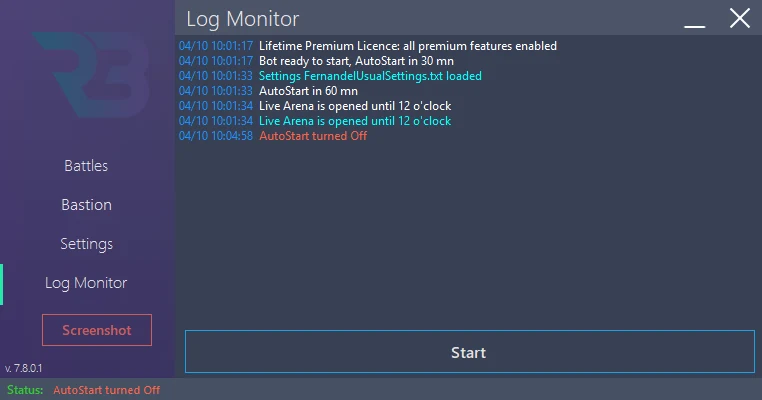
RSLBot GUIDE
Before you begin
General setup
Before starting RSLBot, check the following:
- Windows and the graphics driver are up to date.
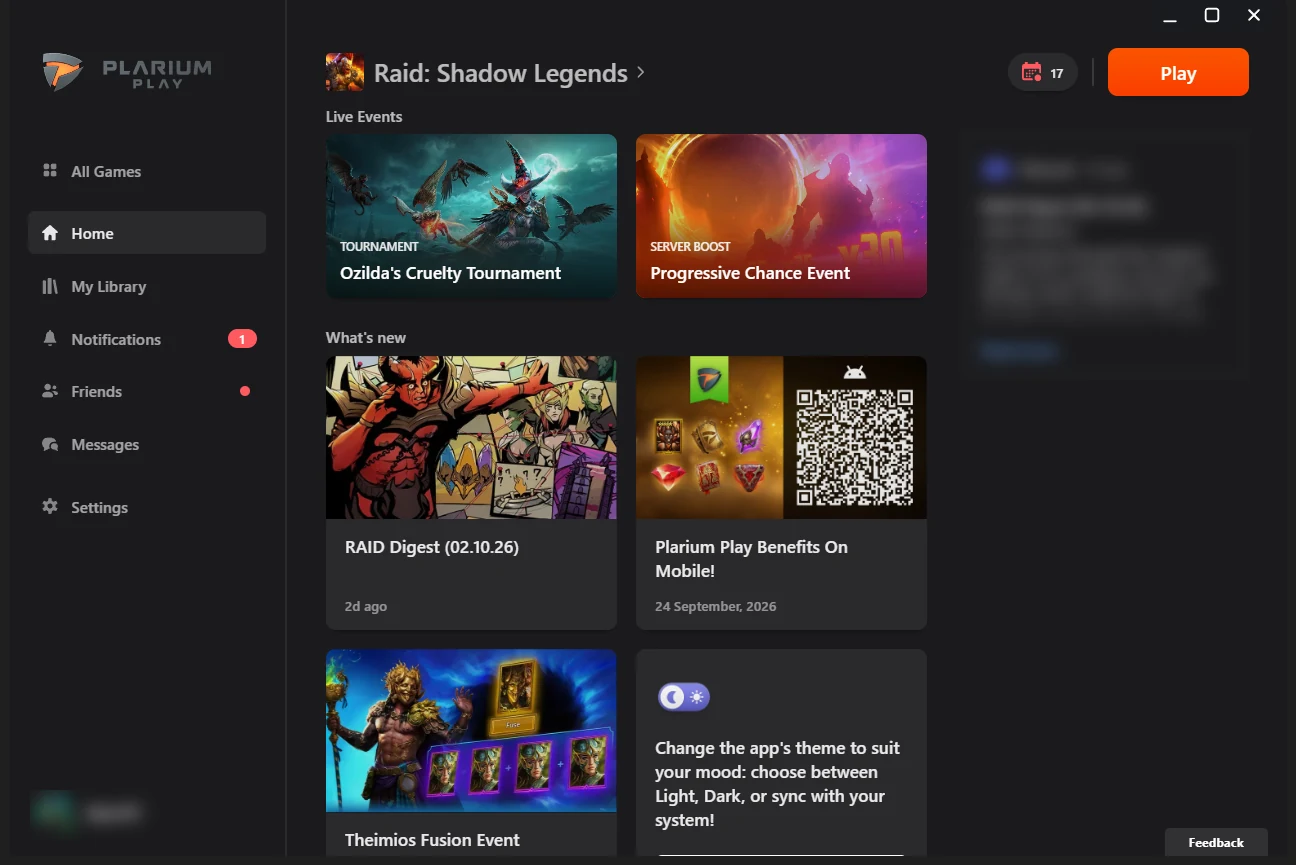
- Plarium Play is installed and working normally.
- RAID: Shadow Legends starts without errors.
- Windows display scaling is set to 100% on the monitor displaying the RAID: Shadow Legends game window (Raid.exe).
- Another window does not cover the game when RSLBot needs to analyse its screen.
- You have a valid RSLBot licence or use the Free offer.
Since RSLBot 7.7.3.0, you no longer need to set every monitor to 100%. Only the monitor displaying RAID: Shadow Legends must use that scaling. This requirement does not concern the Plarium Play launcher window, which is used to select your account and launch the game.
Environment and launch
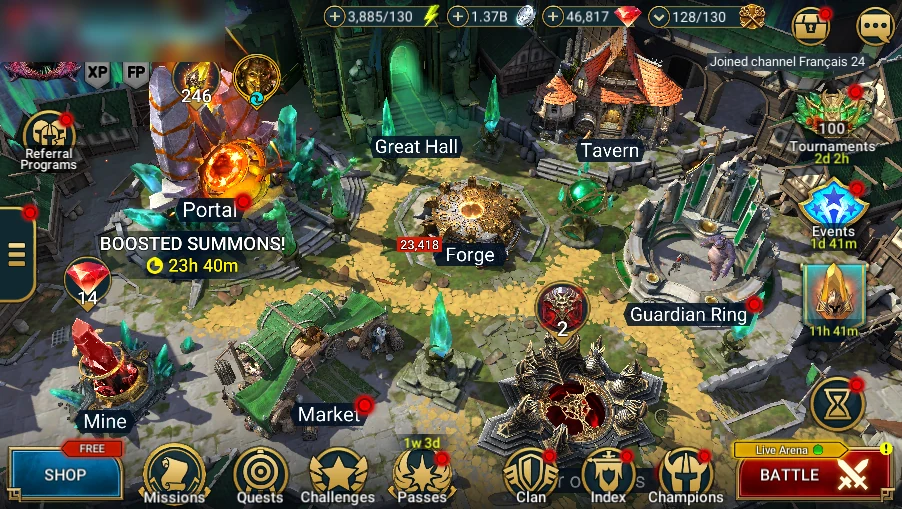
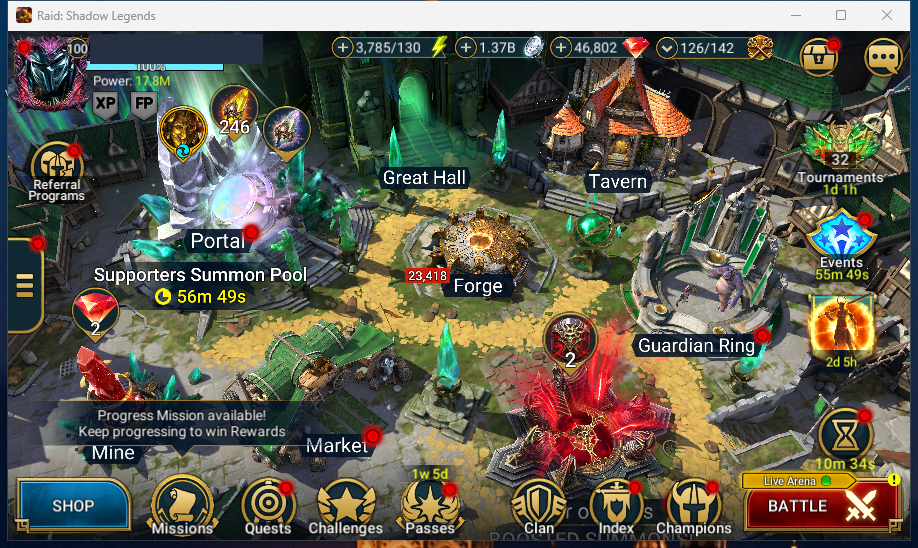
RSLBot runs on Windows. Install Plarium Play, launch RAID: Shadow Legends and check that the game reaches the Bastion before opening RSLBot.
The pilot views were captured with RAID 11.75.0. The text is aligned with RSLBot 7.8.0.1; a screenshot is not a certification of compatibility for every activity.
Prepare the game without changing the account
- Open Plarium Play and launch RAID. Complete any required authentication yourself.
- Wait for the Bastion and close offers or notifications covering the navigation.
- Use the game in English to match the names and states shown in this guide.
- Keep the RAID: Shadow Legends window visible on the monitor set to 100%; do not change resolution during automation. If you move the game to another monitor, check that monitor's scaling.
- Check that the required teams already exist in the game's team presets. A RSLBot team number is not a universal champion list.
A CAPTCHA, reconnection or 2FA code must be handled by you, not the bot. Stop automation before entering this information. In a VM, input and display behaviour may differ from the main PC: do not treat a click that did not execute as a successful action.
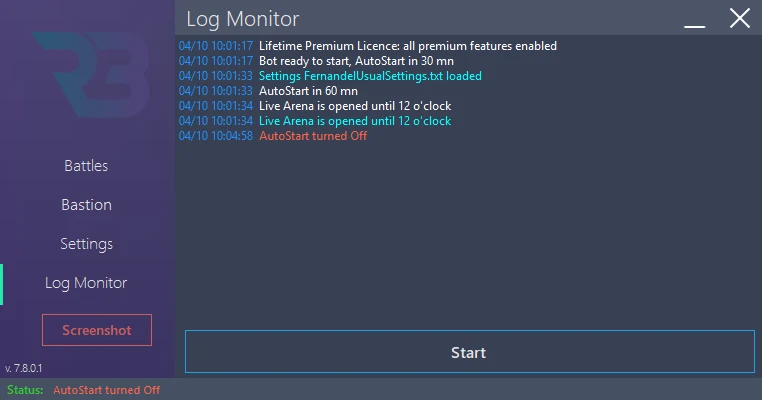
RSLBot GUIDE
Download and install RSLBot
Download RSLBot only from the official download page or official release channel on Discord. Do not use copies sent by private message or hosted on third-party websites.
- Close RSLBot if it is already running.
- Download the official installer or updater.
- Choose a dedicated RSLBot folder that your Windows account can write to.
- Complete the installation.
- Launch RSLBot from that folder.
Update without losing your settings
Stop the bot before updating. Keep copies of your profiles and rule files. The 7.8.0.0 release notes state that the update package no longer replaces UserSettings.txt; this protection does not remove the need for a backup. After updating, check the version, reload your profile and review fields affected by changes before resuming.
Do not download a modified copy to bypass a warning. See the Antivirus chapter if launching is blocked.
RSLBot GUIDE
Antivirus and quarantine
Antivirus warning
Automation software can sometimes trigger a warning. However, a warning must never be ignored automatically.
If Windows Security or another antivirus flags a file:
- Check that the file comes from the official source.
- Check the version and, when one is published, the file hash.
- Do not restore a file of unknown origin.
- Send support the exact detection name, RSLBot version and a screenshot of the warning.
- Wait for support confirmation before adding an exception.
Do not disable the antivirus globally or exclude a folder containing other programs.
Review detections and quarantine
Open Windows Security from Start, then Virus & threat protection → Protection history. Expand the relevant event and note the exact detection name, date and affected file. Administrator rights may be required to see details. Viewing this information does not authorise restoring the file or clicking Allow on device. For a third-party antivirus, use its history or quarantine and official documentation. See Protection history, Microsoft.
Leave the file blocked until its origin and version are verified. Support's confirmation must concern that specific file. Mask identifiers, the licence and personal paths in screenshots sent to support; never restore an unknown file.
Exceptions: a decision after verification
An exclusion is not a normal installation step. It reduces protection and should be considered only after file verification and support confirmation. Any restore or allow action must be performed manually.
To review exclusions: Windows Security → Virus & threat protection → Manage settings → Exclusions → Add or remove exclusions. If an exception is genuinely necessary after validation, prefer the specific file, not a drive, Downloads, a file extension, a process or a general folder. Remove unnecessary exceptions and recheck after updating. Keep protections enabled. See Virus and threat protection and exclusions, Microsoft.
Do not confuse a SmartScreen reputation warning with an antivirus detection. Record its exact wording and ask support before bypassing it. No antivirus setting was changed for this documentation.
Optional Windows view: only if a real detection already exists, Windows Security → Virus & threat protection → Protection history, showing the detection name and file. Mask personal names and paths. Do not provoke a detection, restore or allow a file to take a screenshot. This is not a RAID screen.
RSLBot GUIDE
Sign-in and licence
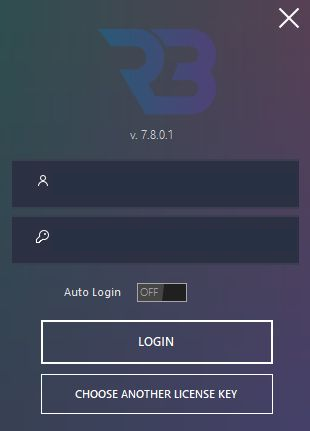
RSLBot displays its sign-in screen on startup.
- Enter your RSLBot account name.
- Enter the licence key associated with that account.
- Click LOGIN once both fields are filled in. The button remains disabled while either the account name or key is missing.
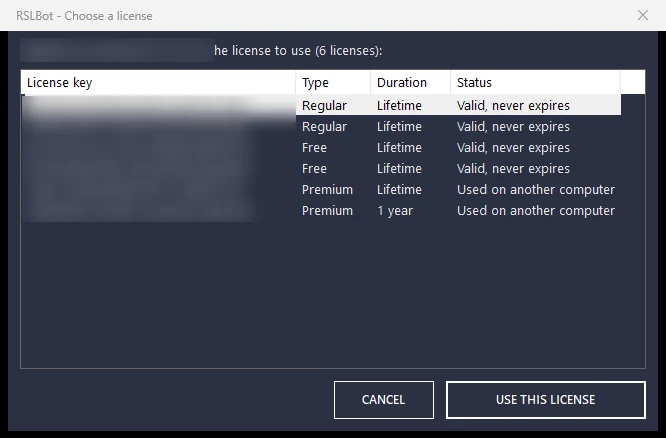
CHOOSE ANOTHER LICENSE KEY lets you select a different licence. If a valid account name and key are already filled in, RSLBot may offer the account's licences directly; otherwise it opens browser authentication, with the RSLBot account or Discord route offered. Complete authentication yourself and choose the required licence. This is separate from Plarium Play sign-in.
Auto Login concerns future RSLBot launches. It remains disabled for the documentation profile.
Your licence key is private. Do not post it on Discord and mask it in every screenshot.
RSLBot distinguishes Free, Regular and Premium, with lifetime variants of the paid offers. Some features may temporarily be offered to another tier during a promotion or test period. The interface and log indicate which features are actually active for the session.
Switch licences and understand status messages
The recent selector fills in the account name and key after you choose a licence. Check the selected offer before LOGIN. RSLBot sign-in does not require sharing your Plarium password with a third party.
In version 7.8.0.1, a licence marked Used on another computer remains selectable. Its owner must confirm taking over its use on this computer when signing in. Do not confirm that transfer just to prepare a screenshot, and do not disconnect another computer unintentionally.
If the RAID server is temporarily unavailable, RSLBot may wait for it to resume. This wait is not necessarily a licence error: read the exact message instead of repeatedly reconnecting.
RSLBot GUIDE
Explore the interface
View the reference screenshots.
The main interface has four areas:
- Bastion: rewards, quests, Market, Bazaar, champions and equipment.
- Settings: general settings, startup, restarts and RSLBot behaviour.
- Log Monitor: automation status, operations, warnings and errors.
- Battles: enabling and configuring the different battle modes.
The main controls remain accessible:
- Start starts automation.
- Pause temporarily suspends RSLBot. Depending on the current configuration, automatic resumption may be scheduled.
- Screenshot saves a game screenshot useful for diagnosing incorrect detection.
Battle-family indicators distinguish:
| Colour | State |
|---|---|
| Red | Stopped. |
| Green | Active. |
| Yellow | Status to check at the next visit. |
| Cyan | Waiting for the scheduled start. |
| Orange | Waiting for the next reset. |
| Purple | Suspended. |
A Daily Battles entry has its own status tracking, including a blue indicator for an enabled entry that is not currently running. Read the relevant indicator's tooltip to avoid confusing these two levels.
Reference screenshots
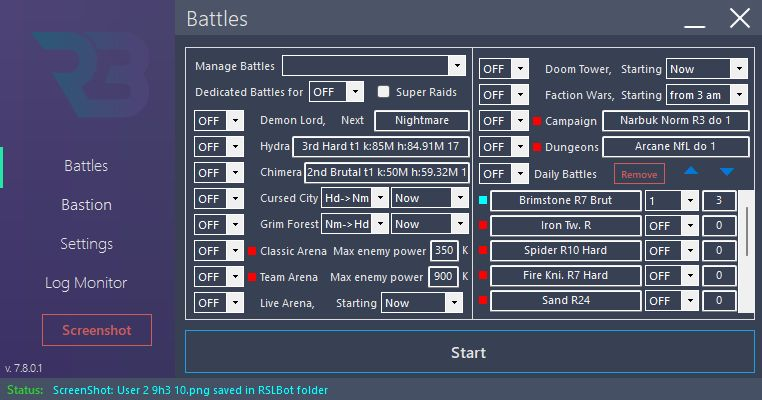
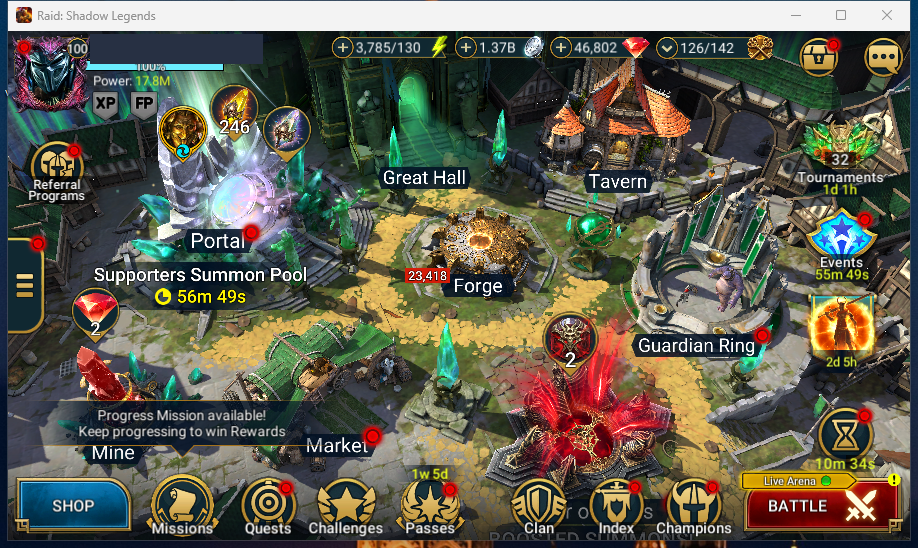
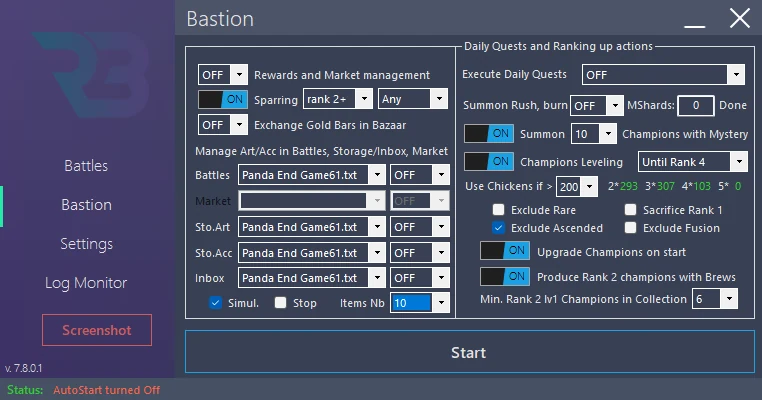
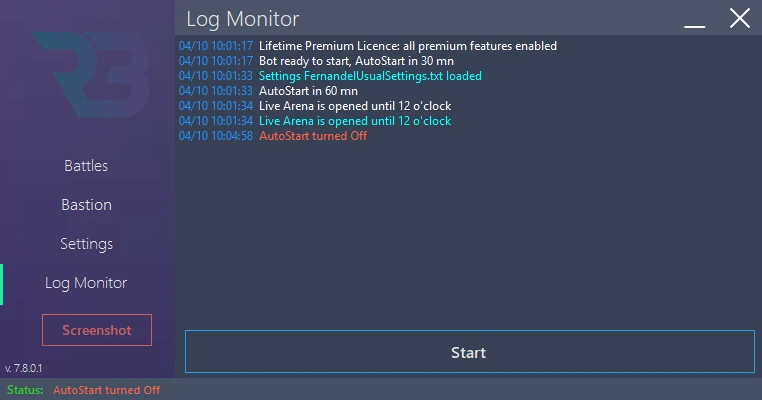
Manage does not start an activity: it opens its settings panel. However, OK keeps your changes; it is not a Cancel button. To inspect a panel without changing the profile, leave its values untouched or reload your reference copy afterwards.
Screenshot saves the RAID window in RSLBot's ScreenShots folder and shows the filename in the log. It does not capture the bot window. Use a separate window capture to document settings.
RSLBot GUIDE
Recommended first start
Documentation profile: no start
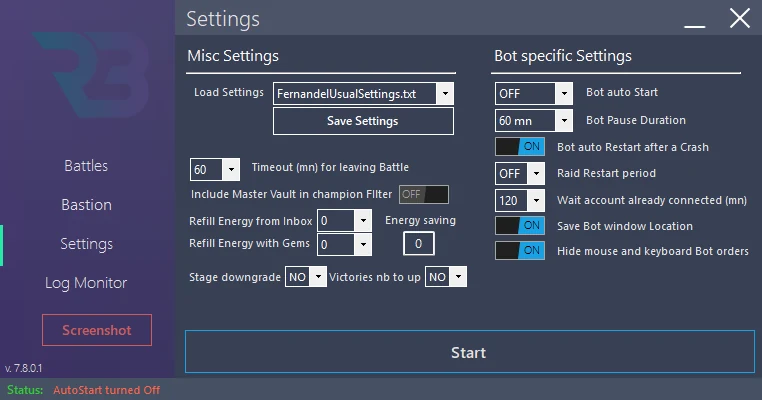
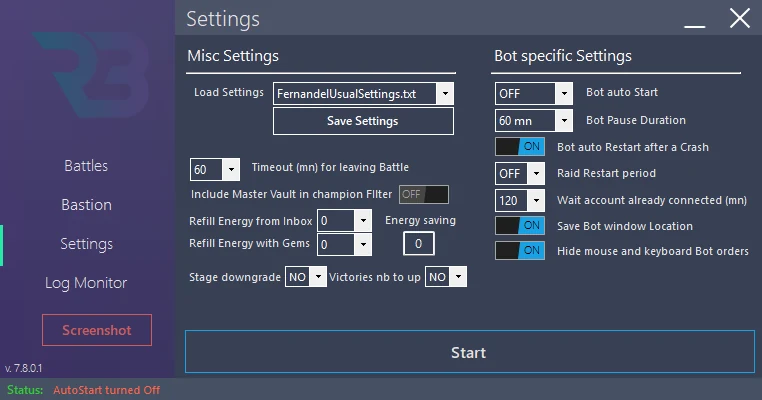
The Documentation-FR profile is for inspecting screens, not playing. In Settings, save it separately from your everyday configuration, then check:
- Auto Start, crash restart and periodic restart: OFF;
- Inbox energy refills and gem spending: 0;
- arena gem spending and key refills: disabled;
- all Battles modules and all Daily Battles entries: OFF;
- quests, automatic rewards, Market, Bazaar, Tavern and Portal: OFF;
- equipment processing: OFF, Simulation checked;
- Super Raids and Quick Battle: unchecked;
- dedicated mode: OFF;
- Detailed Logs: ON.
Opening a Manage panel and displaying a stage before its battle does not spend that battle's resources. Do not click Start or game confirmations during the documentation session.
First real test: a separate procedure
A battle spends its normal resource even without gems. A real test is therefore separate from taking screenshots and must be explicitly decided.
- Save Documentation-FR and create another test profile.
- Choose a previously completed stage and a known team. Disable replacements for this first test.
- Limit the configuration to one battle, or two at most if the second run provides a useful check.
- Keep refills, sales, summons and sacrifices disabled; check quests too, as they can launch their own battles.
- Enable only the activity being tested and start it under supervision.
- Compare the setting, log and game result. Stop if the destination or team does not match.
- Reload Documentation-FR to resume screenshot work.
No battle validation was performed while writing this version.
RSLBot GUIDE
General settings
View the reference screenshots.
Save and load a configuration
RSLBot can save multiple settings profiles. Use descriptive names, for example:
Daily-no-gemsCvC-arenaChampion-trainingHydra-test
Before an important change, save your current profile under a new name. RSLBot also keeps a backup copy of the user configuration at startup.
Automatic start
Automatic start lets you delay activities. Always check that the time corresponds to the local Windows time.
Maximum battle time
The exit timeout determines how long RSLBot lets a battle continue before abandoning it. Too short a value interrupts slow teams; too long a value can hold up automation if a battle gets stuck.
Energy and gems
- Refill Energy from Inbox permits using energy refills available in the Inbox.
- Refill Energy with Gems permits gem spending up to the configured limit.
Always start with gem spending at zero. Increase the limit only after validating how the profile works.
Game restart
Periodic game restarts can reduce slowdowns during long sessions. Automatic crash restart helps RSLBot resume, but does not fix an incorrect resolution or an unexpected screen.
Hidden mouse and keyboard commands
When using the game launched through Plarium Play, RSLBot offers an option to act without monopolising the visible mouse and keyboard. Test it before leaving a long session unattended.
Detailed logs and screenshots
Enable detailed logging when reproducing a problem. Screenshot saves the game screen in RSLBot's designated folder. These are more useful to support when accompanied by the problem time and the expected action.
Reference screenshots
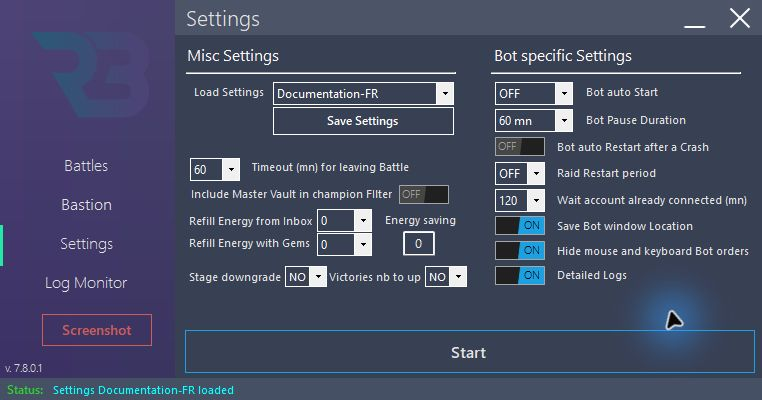
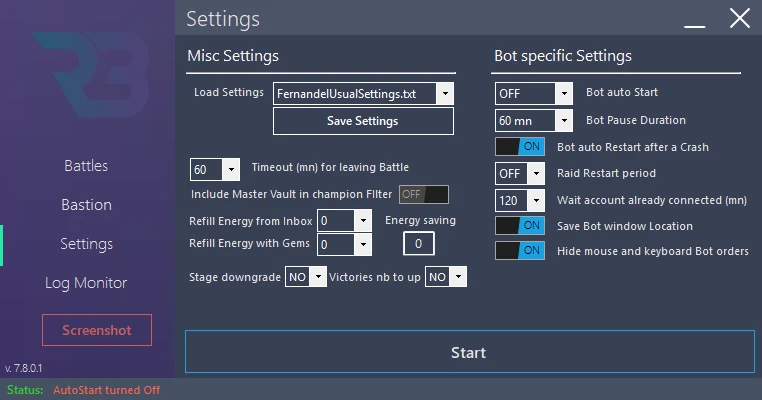
Documentation-FR is separate from the everyday profile: Bot auto Start and crash restart are OFF, Inbox and gem refills are 0, and Detailed Logs is ON. All battle modules, quests, Tavern, Portal, Market and Bazaar remain stopped. Do not press Start while taking these screenshots.
Understand a profile's scope before loading
Load Settings replaces the bot's settings with the selected profile, but not the user identity, licence or bot location. Save Settings saves settings under the given name; those three private details are not included in the profile. If the name already exists, an overwrite confirmation may appear: choose a new name to keep the original.
After loading, always check modules, refills, simulation and automatic start. A profile name alone does not prove that all its options are safe.
Distinguish thresholds from delays
Min Energy is the minimum threshold before Campaign/Dungeon battles stop. It does not, by itself, authorise a refill. Inbox and gem permissions are separate settings. A zero-gem limit does not mean that energy already available will not be spent.
Battle Timeout limits the duration of a battle considered stuck; it is neither a battle count nor an energy reserve. Pause Duration sets a pause length and Waiting Period concerns account-related waiting. Check each field for its own purpose.
Do not change the hidden-command mode during an activity. In a VM, check its behaviour before extended use. If clicks do not execute, keep a screenshot and log rather than blindly repeating actions.
RSLBot GUIDE
Best practices
- Test each new profile briefly.
- Start with all gem spending limits at zero.
- Use Simulation before applying any Autosell rule.
- Lock important champions in the game.
- Keep copies of validated profiles and rule files.
- Supervise first runs after RAID or RSLBot updates.
- Read Log Monitor before resetting a module.
- Use only official downloads and links.
RSLBot GUIDE
Bastion
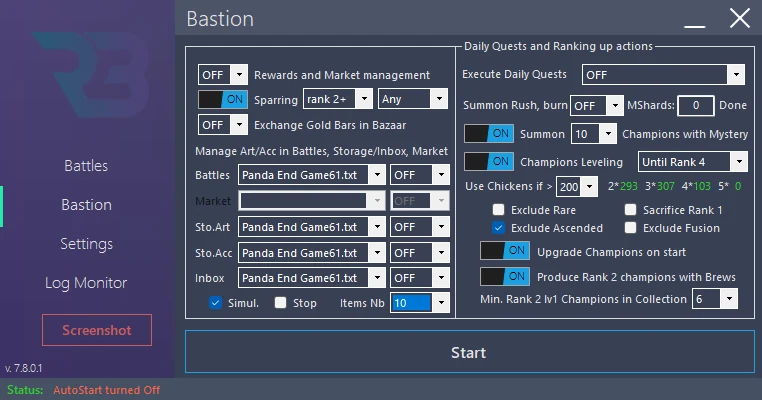
Rewards: choose the categories
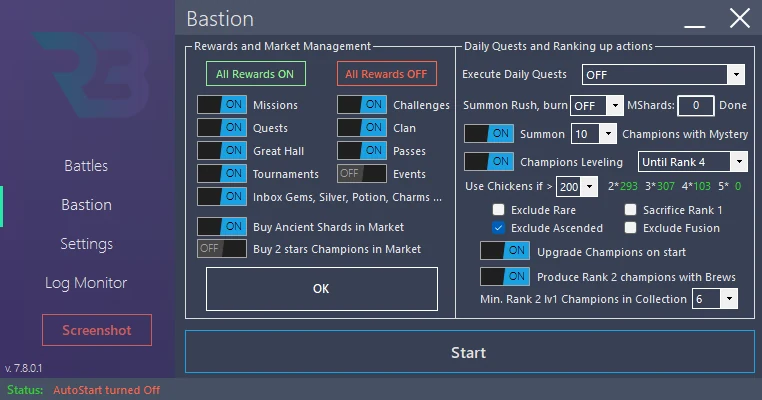
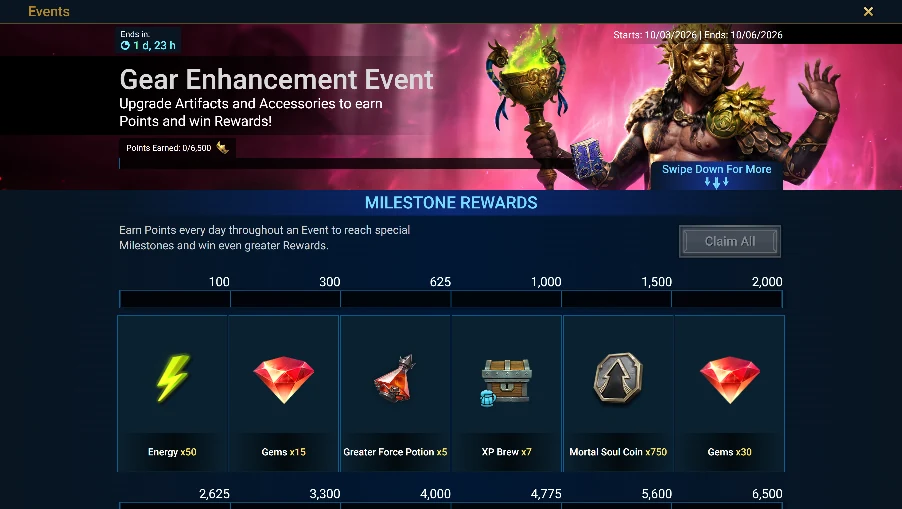
In Bastion → Rewards and Market → Manage, choose the categories to collect: Missions/Challenges, Quests, passes, Clan, Events/Tournaments, Playtime and available Inbox options. All ON enables the panel's categories; All OFF disables them. For screenshots, leave All OFF and keep the module stopped.
Before everyday use, decide whether to collect energy immediately or keep items in the Inbox. Collecting a reward is not the same as spending the resource obtained, but may change the account or retention dates. Check inventory space and review each category before ON.
Market: distinguish the purchases
Purchasing shards or champions from the Market is separate from rule-driven artifact purchases. These purchases use account resources: leave them disabled in Documentation-FR.
The code contains an artifact-purchasing setting based on a rule file, but this feature is not enabled by the production offers in 7.8.0.1. A greyed-out control is not a navigation fault; do not promise automatic purchasing based on an old image.
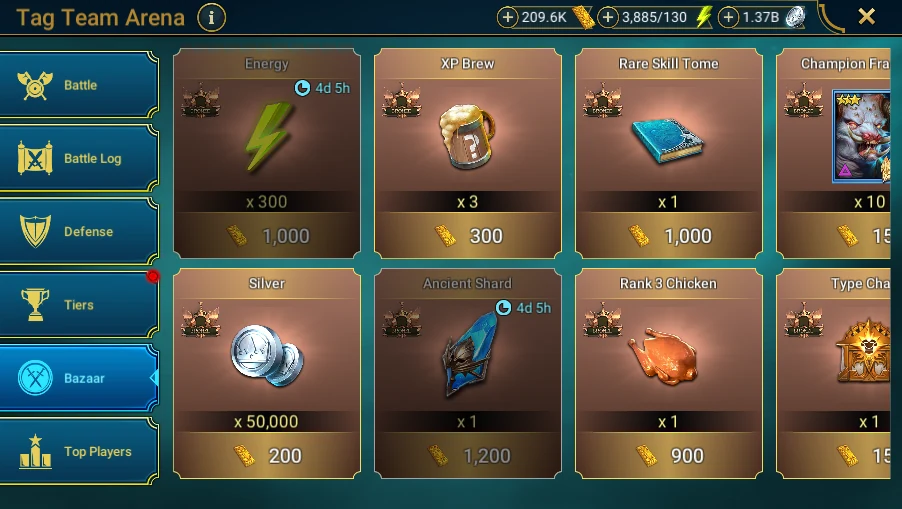
Bazaar: check the slots
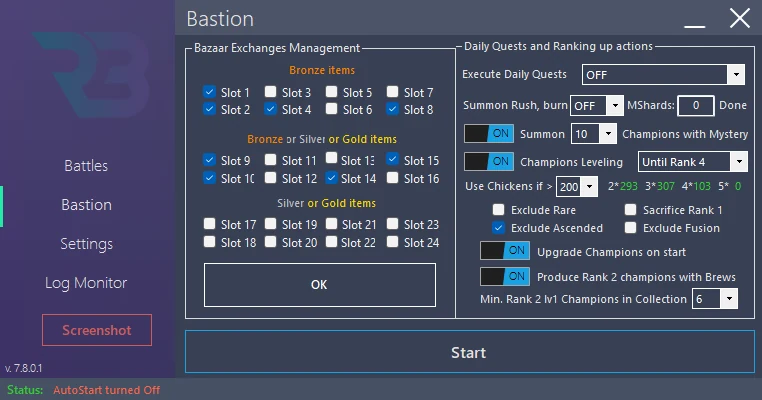
Bastion → Bazaar → Manage opens slot configuration without changing the saved ON/OFF state. Contents may change with account progression or after a purchase. Compare each slot with the real Bazaar before authorising it. Switching ON may open Manage if nothing is selected; do not use ON merely to take a screenshot.
Purchases use Bazaar resources. For documentation, display offers without buying or refreshing.
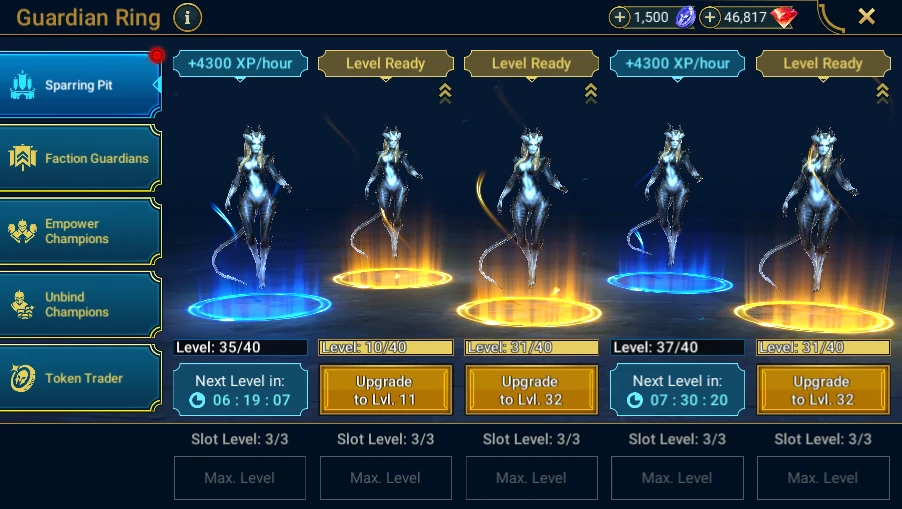
Sparring Pit
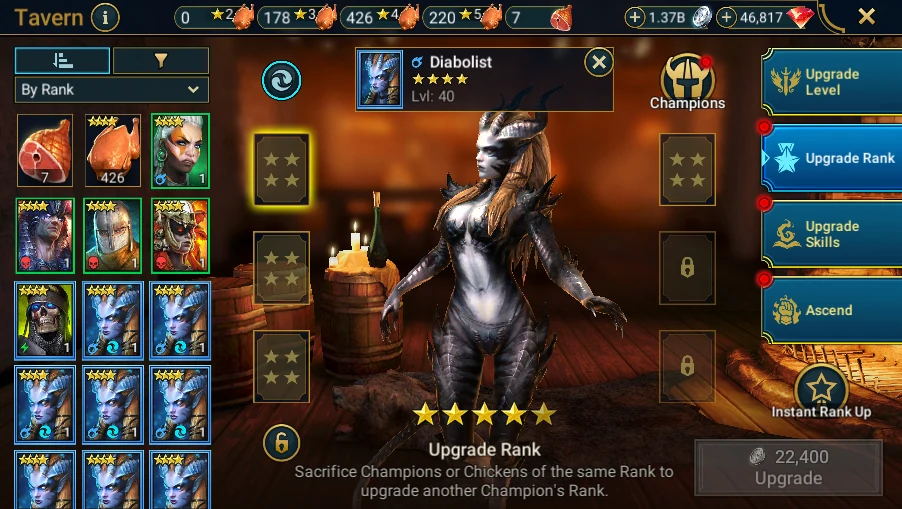
The Sparring Pit can select champions using the available criteria. Check rank, rarity and availability before enabling it. Do not confuse this passive progression with the Tavern's ranking workflow: their scope differs.
Champions used in a team, fusion or collection must remain protected. Document the criteria with the module OFF; do not move champions or buy a slot to prepare an image.
RSLBot GUIDE
Daily and Advanced Quests
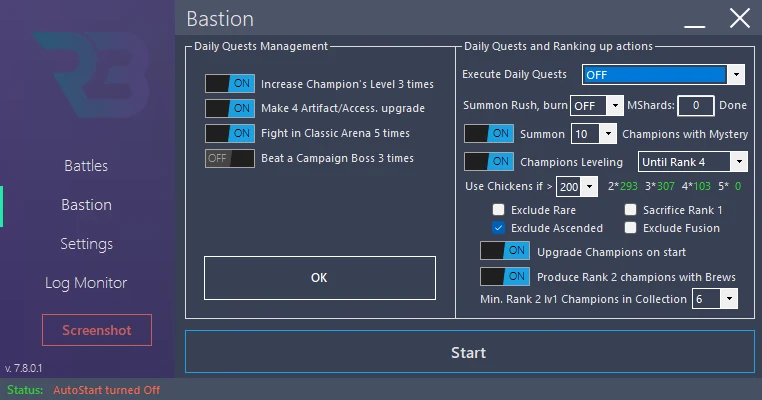
RSLBot can perform actions needed for Daily Quests and several Advanced Quests.
When Daily Quests are enabled, required battles may launch even if their usual battle mode is disabled. Configuring the teams and stages used by quests is therefore important.
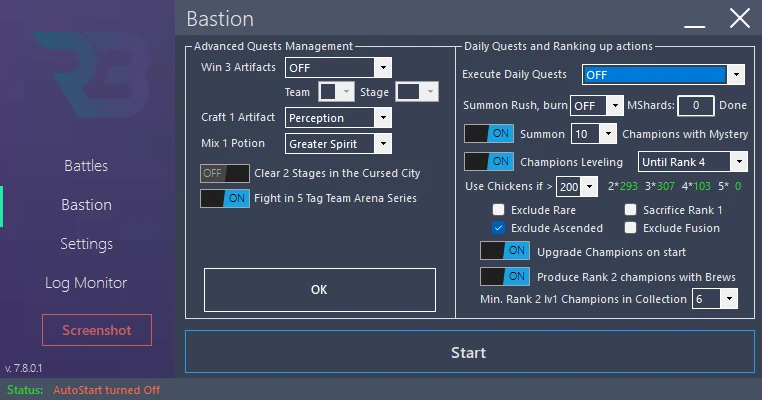
For Advanced Quests requiring a specific team, choose a saved team rather than allowing RSLBot to reuse the last team without checking.
Supported actions evolve with RAID updates. Check Log Monitor if a quest remains incomplete: the log generally indicates the step being sought or why it was abandoned.
Configure execution
- In Bastion, leave Execute Daily Quests OFF while configuring.
- Open Manage Daily Quests. Check the activities and teams used for daily objectives.
- Open Manage Advanced. Review settings related to bosses, champion restrictions and crafting operations.
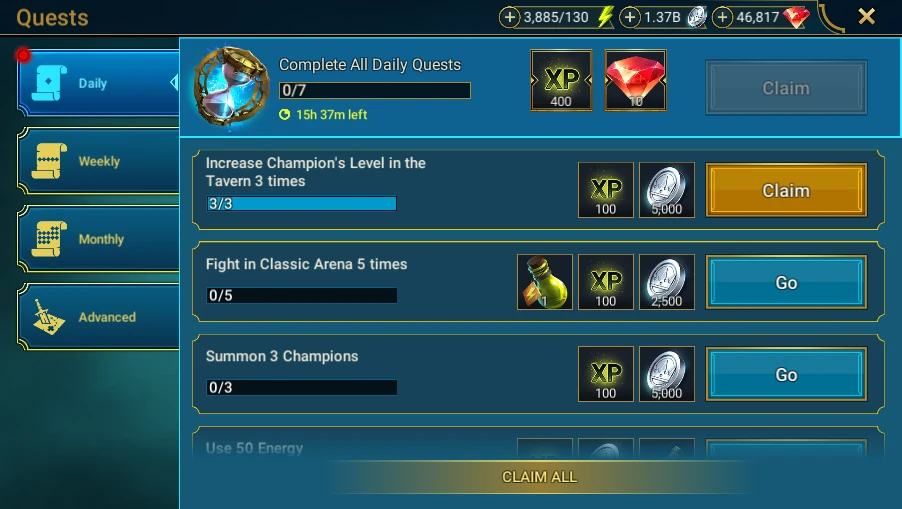
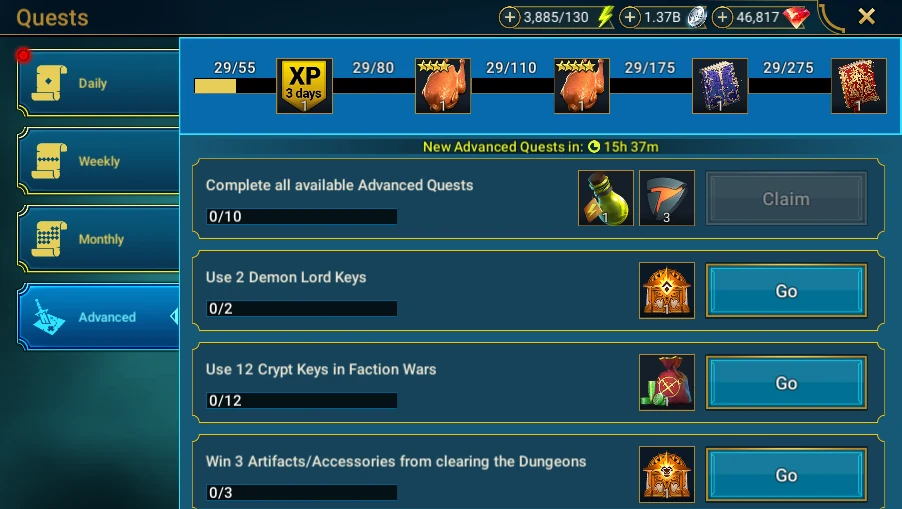
- In the game, compare with Quests → Daily, then Advanced. Today's actual objectives are authoritative.
- For a validated everyday profile, choose Now or a start time. For Documentation-FR, keep OFF.
These Manage panels do not change the saved execution time. Potion mixing and Forge crafting options may spend potions, silver or materials: they are not read-only operations. Do not execute them to illustrate a quest.
Expected result in real use: the log indicates the objective handled and game progress changes. Diagnose an incomplete objective using its exact wording, not by resetting every activity.
RSLBot GUIDE
Champions: levelling and training
RSLBot mainly distinguishes two uses:
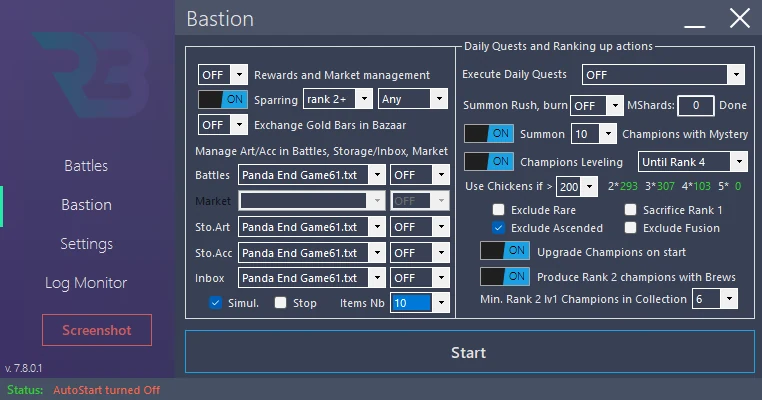
- Champions Leveling: level and rank champions according to the configured criteria.
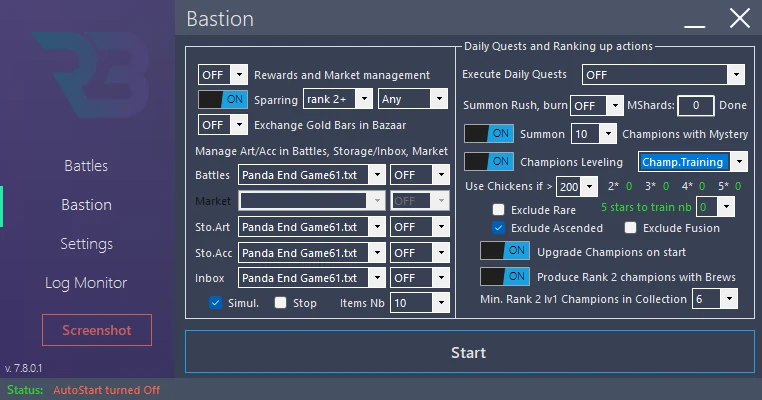
- Champions Training: prepare champions for a training event, with additional settings depending on the licence.
Recommended protections
Before any Tavern automation:
- lock important champions in the game;
- enable rare-champion exclusion if you have any doubt;
- enable ascended-champion exclusion;
- enable fusion-champion exclusion;
- do not authorise chickens without defining a minimum reserve;
- start with a small quantity and check the result.
RSLBot protects certain categories, but no sacrifice workflow should start without a settings backup and a review of the filters.
Prepare Leveling and Training
- Open Bastion and the Tavern configuration without enabling processing.
- Choose Leveling or Training, as available with your licence. Review its target: level, rank or event preparation.
- Check rarity, ascension and fusion exclusions. In-game locking provides an additional protection, not blanket permission to sacrifice everything else.
- Set reserves of chickens and 5-star champions to keep. A reserve does not replace checking eligible champions.
- Check the Portal's summoning permissions: they can feed the progression workflow.
- Save the profile; for Documentation-FR, leave Tavern and Portal OFF.
Produced-champion counters describe the bot's tracking. A value inherited from a previous session is not the result of the current demonstration.
Ranking sacrifices champions or chickens and is irreversible. No guide screenshot requires performing that sacrifice. Show settings and the Tavern before any confirmation.
RSLBot GUIDE
Summon Rush
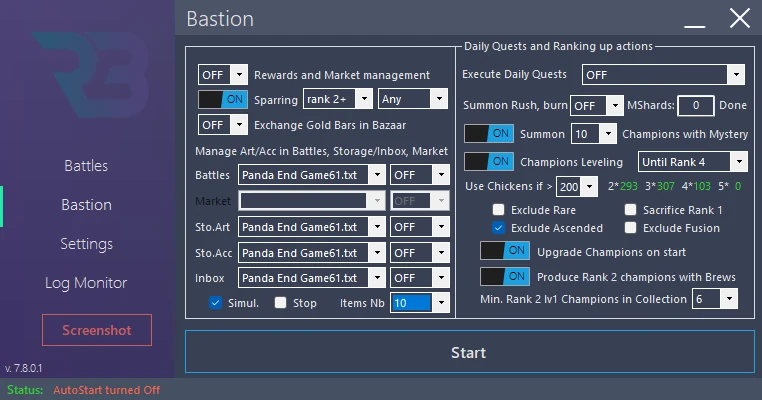
Summon Rush is included in Premium. It can summon champions and feed a training or ranking workflow. Do not confuse it with opening the Portal to inspect shards.
Configure without summoning
- Check the licence and active profile.
- In Bastion, open Summon Rush and associated progression settings while leaving Portal and Tavern OFF.
- Define a limited number of Mystery Shards, never an unlimited scope for a first profile.
- Check available space, reserves and champion protections described in the previous chapter.
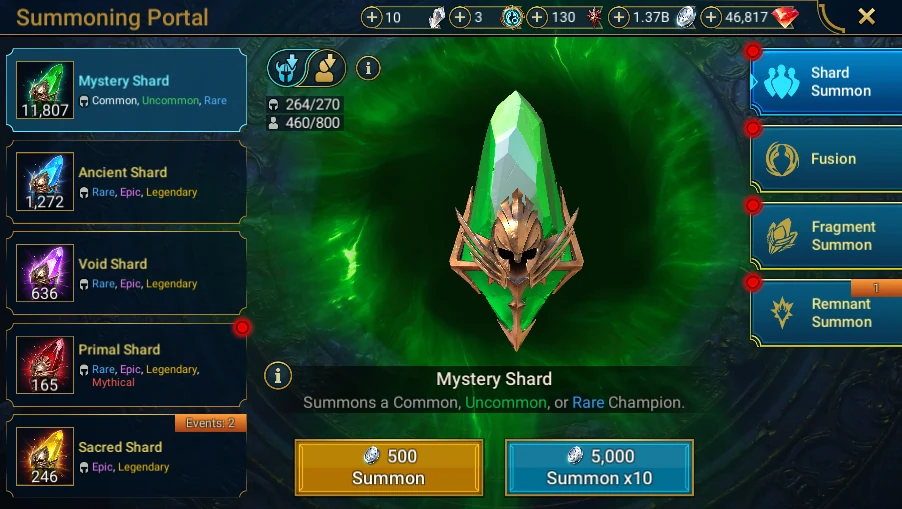
- In RAID, inspect Portal → Mystery Shard without selecting a summon.
A real summon spends a shard and may then trigger an irreversible Tavern operation. For documentation, neither Summon nor the progression workflow is executed. No summoning counter is presented as a result of this session.
RSLBot GUIDE
Equipment and Autosell
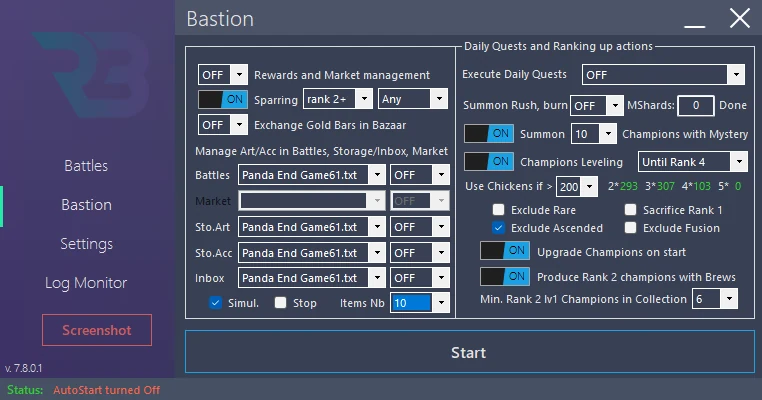
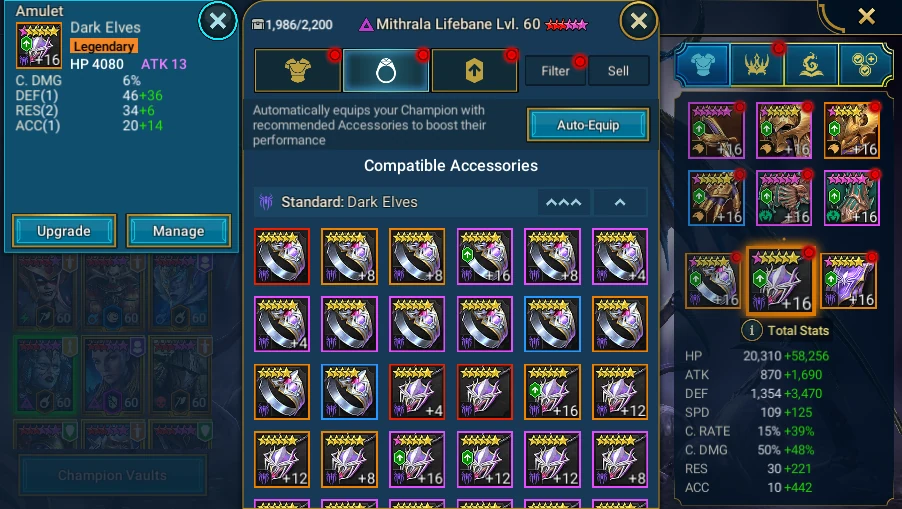
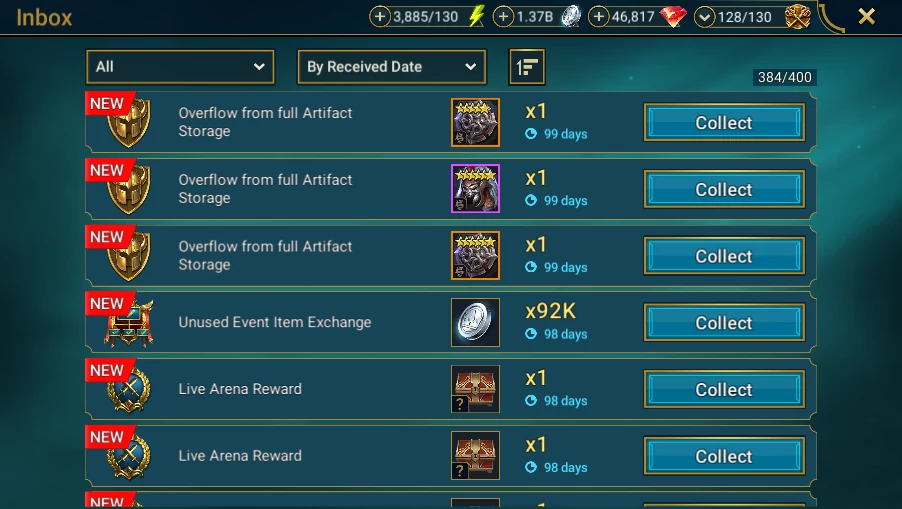
View the reference screenshots.
Recent RSLBot versions have a rules engine for artifacts and accessories.
Rules may apply:
- after certain battles;
- to stored artifacts;
- to stored accessories;
- to Inbox items.
Market artifact purchasing uses a separate mechanism disabled by the current production licences.
Test a rule without selling
Use Simulation first. It evaluates rules without selling items. Review selected items and logs, correct the rules, then test again. Simulation does not make the bot's other modules harmless: Tavern, Portal and battles must remain stopped.
Enable real selling only after validation. Start with a limited item count and keep a copy of the rule file.
Recent rules can consider accessory-specific properties, including faction, set and certain special types.
Automatic upgrading
RSLBot can upgrade artifacts and accessories to defined milestones. Carefully distinguish:
- newly received items;
- the entire inventory;
- a one-off immediate operation.
An incorrect scope can spend substantial silver. Test selection on a small number of items.
Reference screenshots
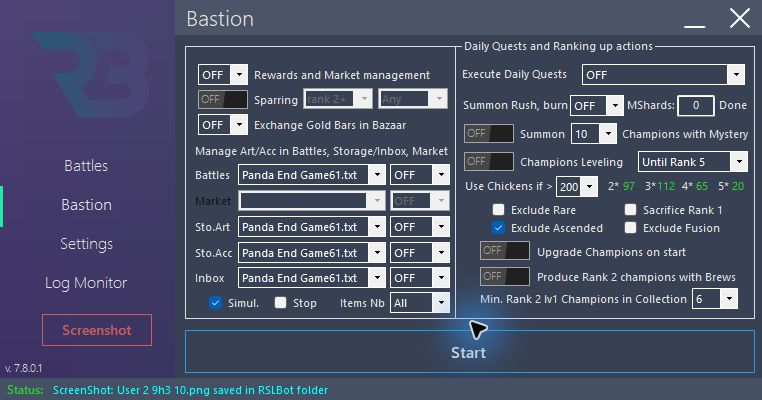
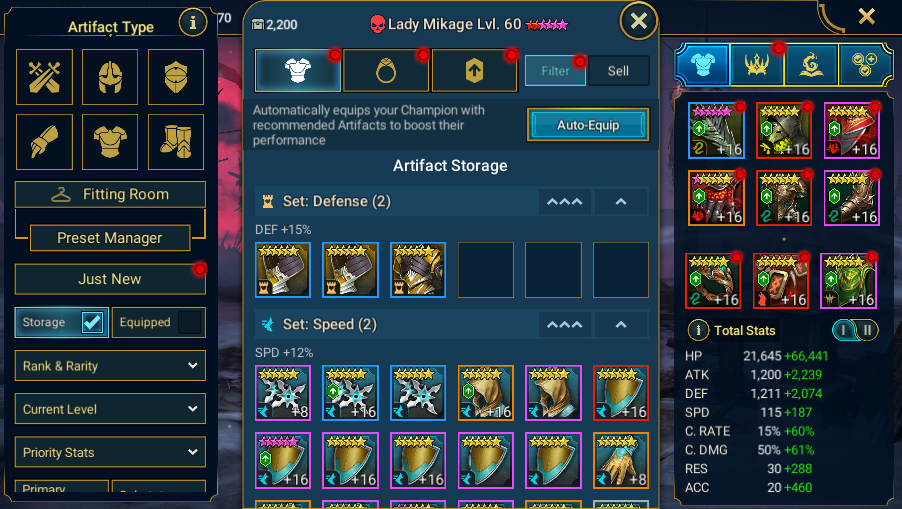
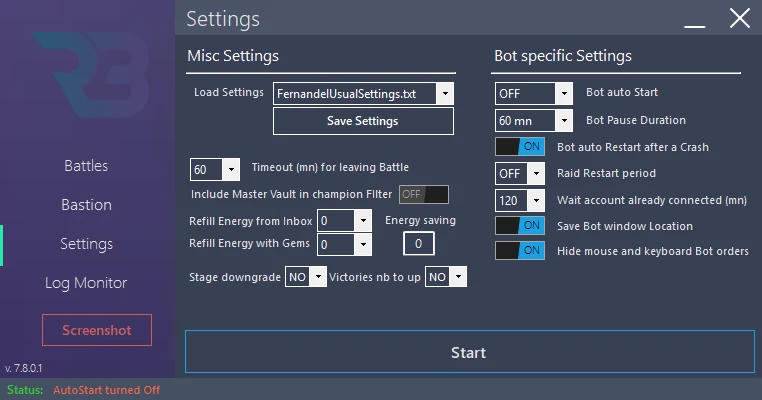
Items Nb is still All in this screenshot; that scope has not been tested. Reduce it before a first simulation test. No processing, including simulation, was started during the session.
Define the scope correctly
| Scope | What to check |
|---|---|
| After battle | Autosell is available in every licence; check the option specific to the battle mode too. |
| Artifact Storage | Regular/Premium inventory management: distinguish artifacts from accessories. |
| Accessory Storage | Check faction, set and accessory-type criteria. |
| Inbox | Inbox management is separate from storage management; do not collect items to prepare an image. |
| Items Nb | Processing limit; All covers the entire scope and is not a safety limit. |
| Stop after management | Stops after processing; it does not undo a completed sale. |
Simulation procedure to validate separately
- Save your profile and selected rule file.
- Select the correct scope, check Simul. and limit Items Nb to a small number.
- Review the file actually selected for this scope; a file loaded elsewhere is not necessarily used here.
- Leave upgrades, real sales and other modules OFF.
- If you decide to execute the simulation, inspect the log and evaluated items. Correct the rules before any real processing.
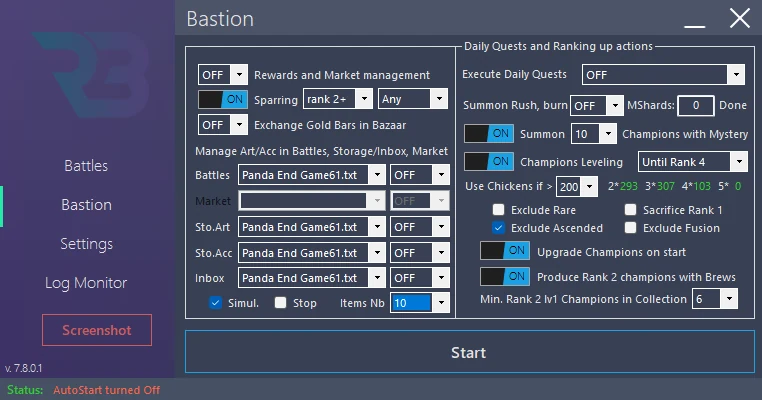
Simulation evaluates rules without selling. It must not be presented as a backup that can recover a later real sale. Current screenshots show configuration only: the simulation engine was not executed.
RSLBot GUIDE
Organising battles
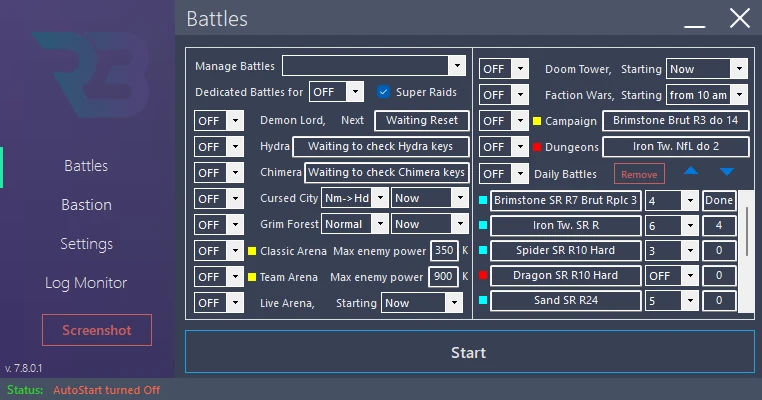
The Battles tab centralises the available modes. Common choices are:
- ON: enables the mode;
- OFF: disables the mode;
- Manage: opens its configuration;
- Wait: waits for a reset or a specified period;
- Reset: resets the status tracked by RSLBot.
Use Reset only when the recorded state no longer matches the account's real situation, for example after manual battles.
Choose the right organisation
- Campaign / Dungeons: a specialised destination; ON means running that family alone according to its menu's intended behaviour.
- Daily Battles: an ordered activity list, with parameters and a counter for each entry.
- Other families: bosses, arenas, towers and maps, each with specific resources and resets.
- Dedicated mode: temporarily prioritises an activity; its duration does not change game resources.
- Priorities: order of available battle families, separate from Daily Battles entry order.
Understand repetition and progression modes
Replay repeats the selected stage. Replay Last uses the last known stage; Next from and Next from Last are progression modes, not synonyms for Replay. Check the starting stage and supervise the first transition before using them.
Win/loss thresholds can affect progression when available. For a first profile or screenshot, choose an explicit stage, Replay and no automatic stage change.
Super Raids increases resource consumption per launch in eligible activities. Quick Battle depends on in-game unlocks. Do not enable these options solely to reproduce a result screen.
Reset updates the bot's tracking, not account resources. Wait prevents immediate resumption while waiting for a reset. Compare the game counter with the log before changing status.
RSLBot GUIDE
Dedicated battle mode
Dedicated mode focuses RSLBot on the selected activity for a given duration. It is useful for interrupting the normal cycle for a Campaign, arena, Hydra or training session.
Before enabling it:
- disable unwanted spending;
- check available resources;
- set a reasonable duration;
- check that the correct module is the only active one.
After the session, reload your usual everyday profile.
Prepare a dedicated session
- Save your everyday profile.
- Open Battles and prepare the required family's settings before selecting dedicated mode.
- Check duration, battle count and refill permissions. Dedicated-mode duration is a paid-offer setting.
- Check that the destination and team match the game.
- For a screenshot, keep dedicated mode OFF. For validated real use, supervise session start and exit.
Do not assume that selecting a duration protects against spending: selling, sacrifice, gems and refill settings must be checked separately.
RSLBot GUIDE
Priorities and start times
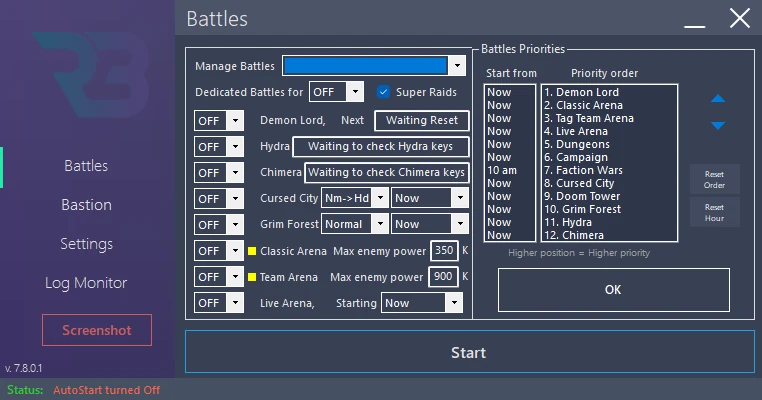
Battle-family priority management is a Premium feature. In Battles → Manage Battles → Manage Priorities, put first the modes you want handled with priority when available.
Change order and start times
- Select a family and use the arrows to move it.
- Set its start time if you want to delay its availability.
- NOW means it may start as soon as it is available, not that a battle launches immediately.
- Reset commands restore the default order or NOW times. They change settings: do not use them to obtain a screenshot.
- Save your profile and check the values after reloading.
Priority changes are retained in the current version's settings. The list concerns families, including Grim Forest; it does not replace Daily Battles entry order.
A start time is not a guarantee
An OFF module does not start at the configured time. A module without keys or tokens, or not included in the licence, does not become available merely because its priority changes. A battle already running, a game wait or dedicated mode may also delay the activity.
Build your order around resource resets, quests and your teams' actual battle times. Keep times visible in the screenshot and explain your intention; do not present an endgame account's order as universal.
RSLBot GUIDE
Campaign
View the reference screenshots.
Configure:
- difficulty and location;
- stage;
- battle mode;
- battle count;
- team;
- optional replacement of champions being levelled;
- rarity and rank criteria.
Use Replay to repeat a validated stage. Supervise progression modes on their first run.
For levelling, check that the team can win reliably after every replacement. A defeat limit helps avoid wasting energy on a configuration that has become too weak.
Reference screenshots
Prepare an explicit stage
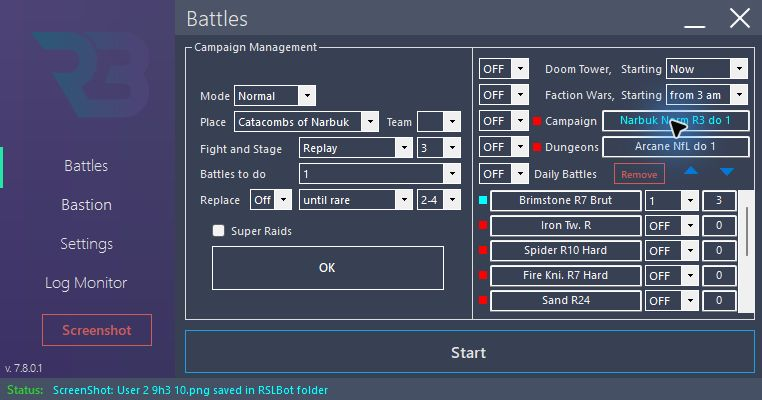
- In Battles → Campaign → Manage, select difficulty, location and stage.
- Choose Replay, an explicit team and 1 battle for the test configuration.
- Leave replacements OFF. For a later levelling session, define rank/rarity and replacement rules, then check the team after the first replacement.
- Leave Super Raids and refills disabled.
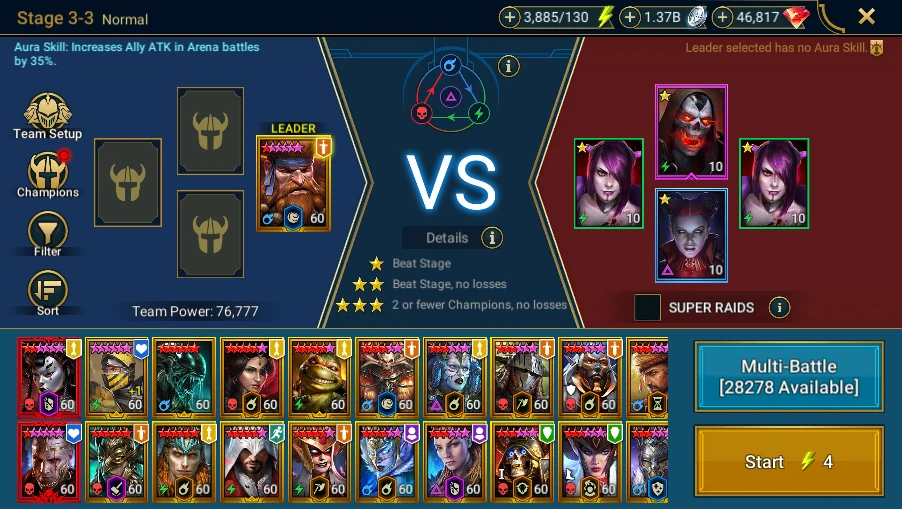
- Compare with the game's battle preparation: same difficulty, chapter, stage and team.
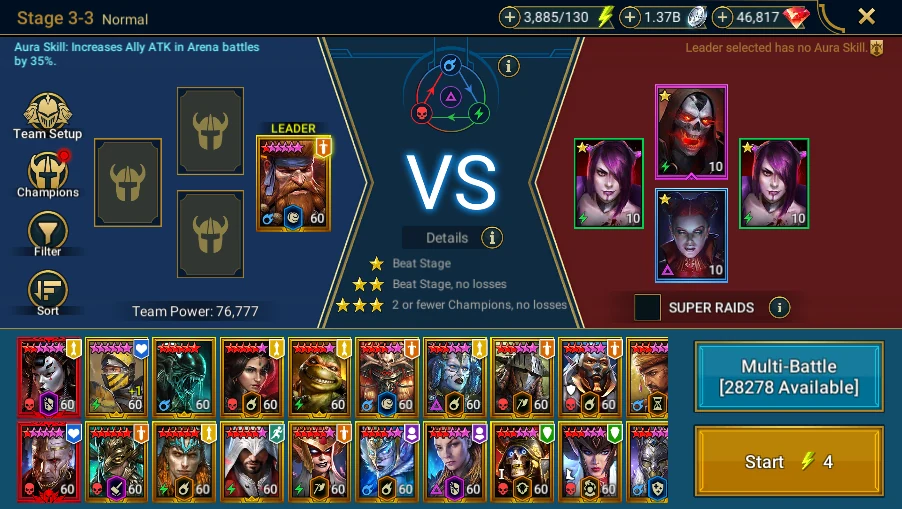
Illustrated example: Normal → Catacombs of Narbuk → Stage 3-3.
In real use, check that the team wins without the champions already at maximum level when replacement is enabled. An eligible automatic selection is not necessarily a team capable of winning.
RSLBot GUIDE
Dungeons
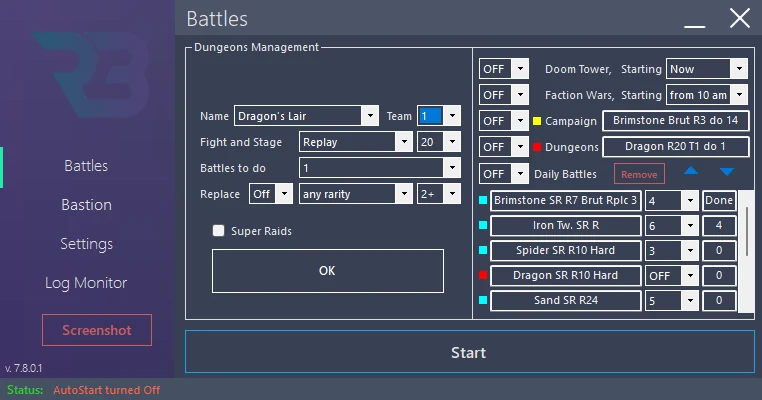
RSLBot supports the main dungeons and several specialised activities depending on the licence. Configure stage, team, battle count, Super Raids and resource spending separately.
The list declared in RSLBot 7.8.0.1 includes:
- equipment: Ice Golem's Peak, Spider's Den, Dragon's Lair and Fire Knight's Castle;
- potions: Arcane Keep, Spirit Keep, Magic Keep, Void Keep and Force Keep;
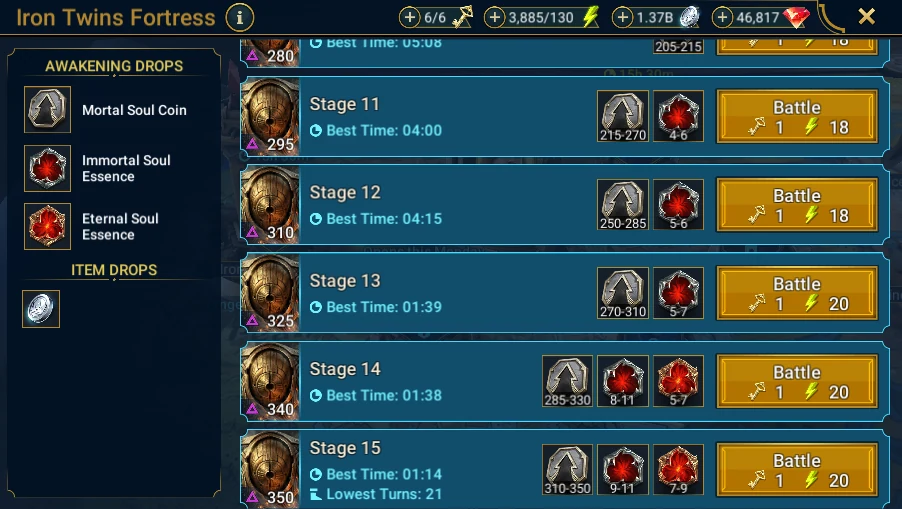
- specialised activities: Iron Twins Fortress, Minotaur's Labyrinth, Sand Devil's Necropolis and Phantom Shogun's Grove;
- Event, when the event dungeon is available in the game.
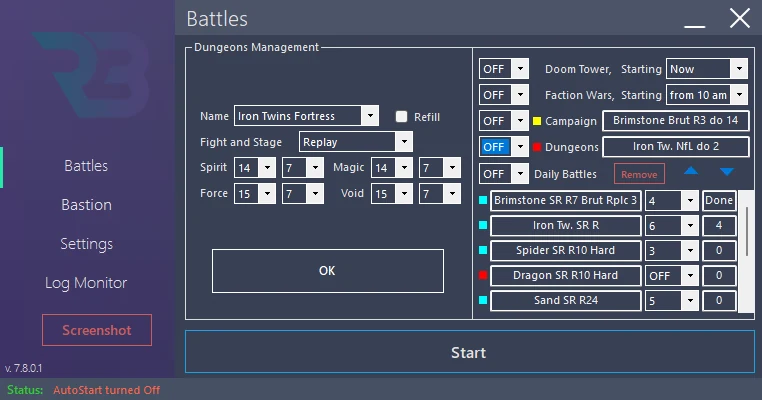
Actual choices depend on the active licence. For Iron Twins, check stage and team by affinity as well as refill permission. For a first test, use a previously completed stage, an explicit team and one battle, without Super Raids or refills.
Prepare a dungeon
- In Battles → Dungeons → Manage, choose the dungeon and difficulty when offered.
- Set an accessible stage, a team and an explicit battle count.
- Choose Replay for repetition; do not let a Next mode progress to an untested stage.
- Disable Super Raids and champion replacement for the first check.
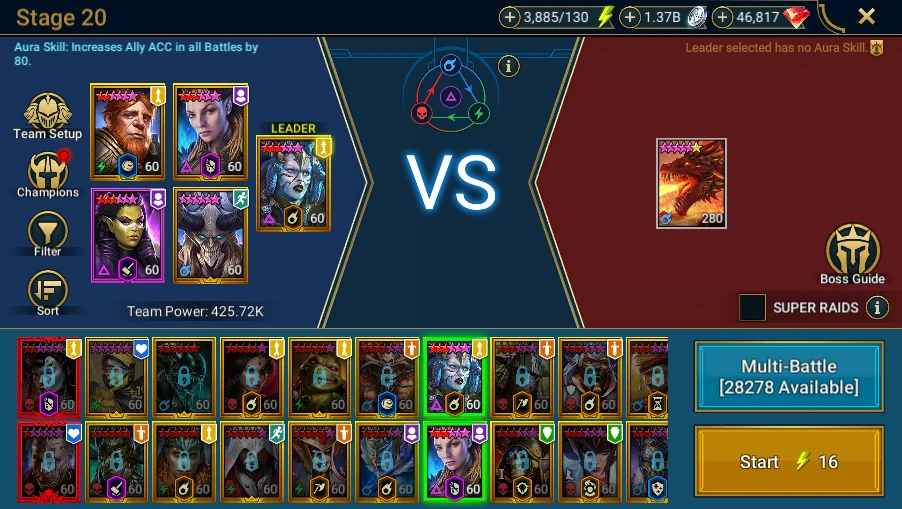
- Compare game battle preparation with all these parameters before enabling.
Dungeons have different requirements: a Dragon team does not become a Fire Knight team merely by changing the destination. Potion dungeons depend on their opening schedule; a closed dungeon will not open through a higher priority.
Iron Twins has its own key and refill rules, as well as teams by affinity. Check this permission independently of the gem limit for energy. Minotaur can be used in Daily Battles with a scroll objective; do not confuse that objective with a simple battle count.
Expected result in real use: the correct stage is replayed with the chosen team and the counter advances. Reward Autosell depends on rules and Simulation settings, not just the selected dungeon. No real dungeon result is requested to complete preparation screenshots.
RSLBot GUIDE
Daily Battles
View the reference screenshots.
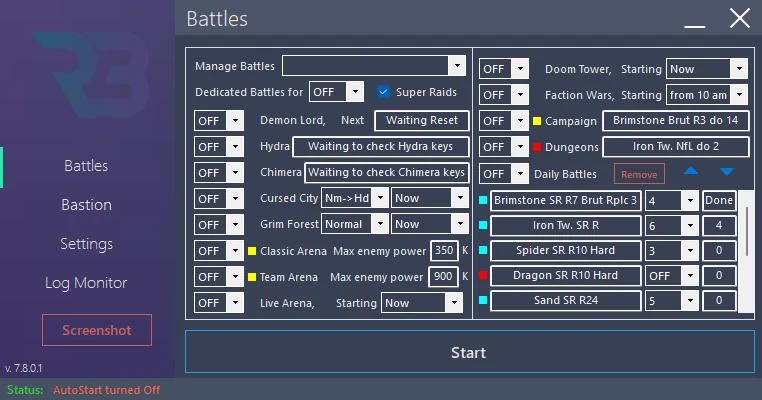
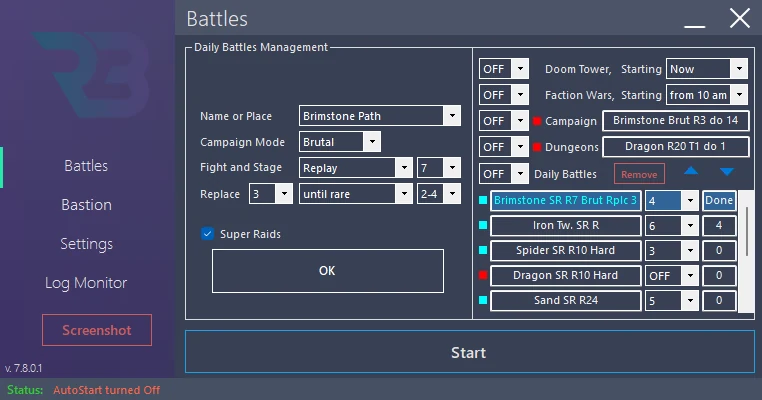
Daily Battles defines an ordered activity list, such as several battles in different dungeons and Campaign. Each entry has its own parameters: activity, stage, team, objective, replacement and Super Raids.
Daily Battles differs from the dedicated Campaign or Dungeon mode. Enabling a dedicated mode can disable the daily list to avoid contradictory instructions.
Reference screenshots
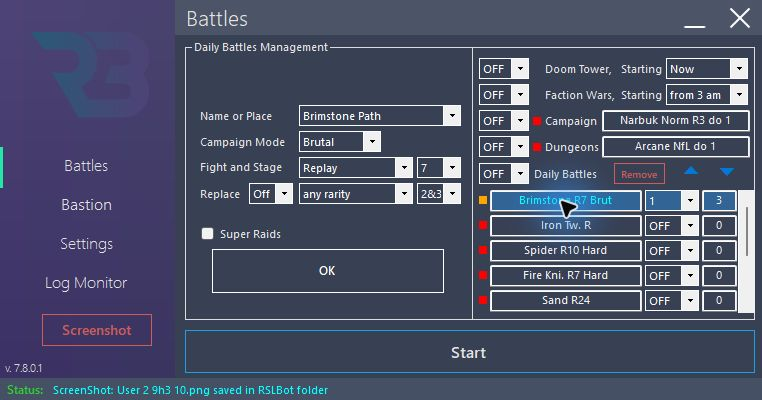
Build and review a list
- Open Battles → Daily Battles → Manage, module OFF.
- Add or select an entry and check activity, mode, stage, team, Replay, replacements and Super Raids.
- Define To Do. A numeric value counts battles; n Mx targets champions at maximum level or maximum scrolls depending on the activity. Unlim should be reserved for the final entry because it may prevent reaching later entries.
- Use arrows to order entries. Battle-family order does not change this internal order.
- For Documentation-FR, prepare one entry limited to 1 and keep the module and other entries OFF.
Done is the number already tracked for the day. Reset sets that counter to zero; Wait waits for reset. Do not reset it to fabricate a demonstration result.
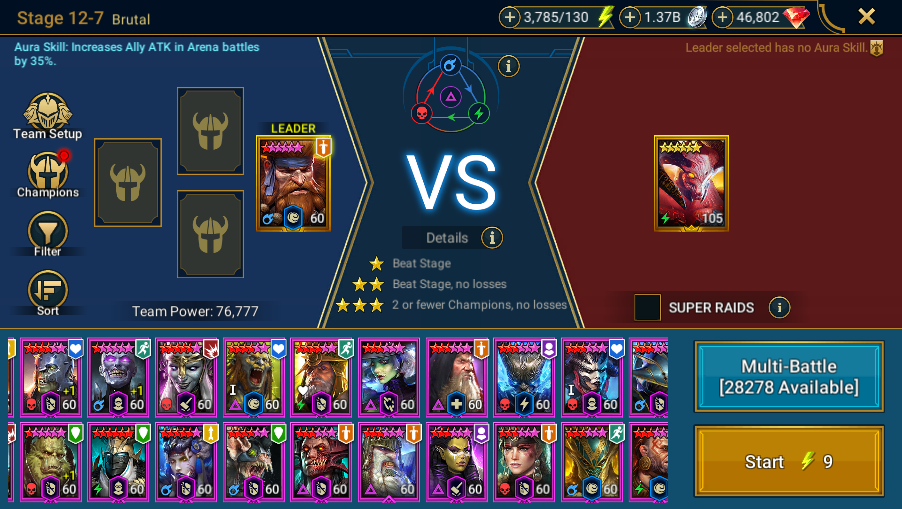
The current pair illustrates Brimstone Path → Brutal → Stage 12-7, without launching. The visible counter of 3 is inherited. When validating a real list, observe the transition to the next entry to check stop conditions.
RSLBot GUIDE
Demon Lord
View the reference screenshots.
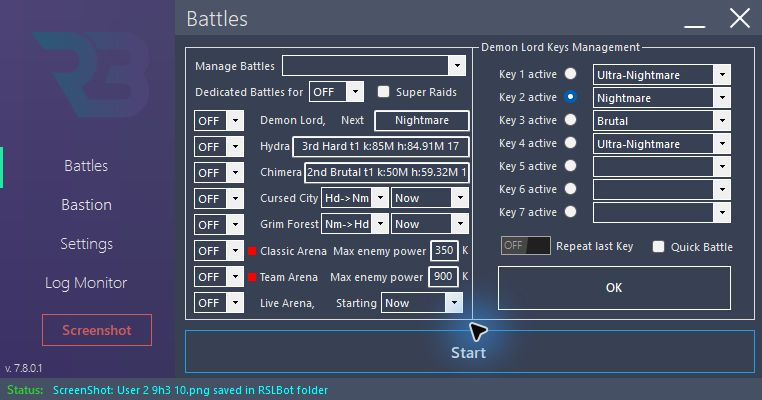
RSLBot can use Demon Lord keys according to a configured sequence.
For each key:
- choose the difficulty;
- choose the team, or leave the team saved in the game when that behaviour is desired;
- set the next active key;
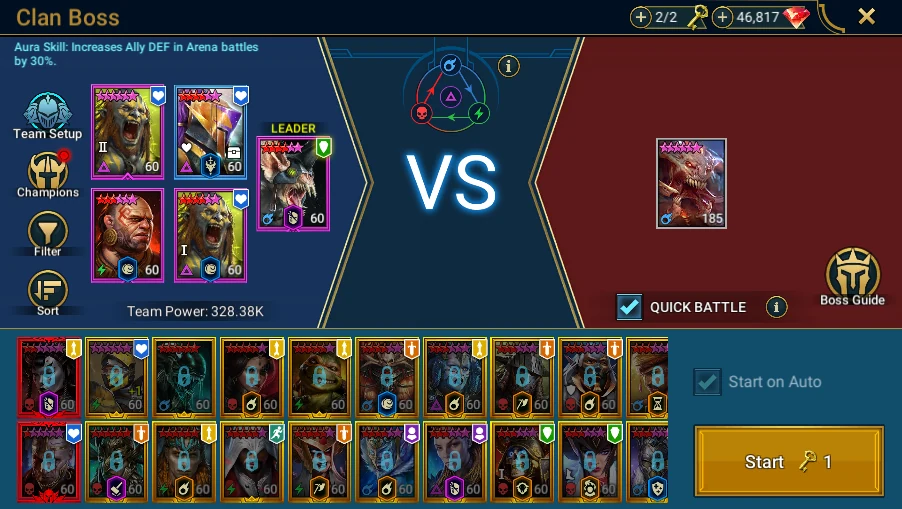
- enable Quick Battle only if the account meets the game's requirements.
Use Wait if you already played manually and want RSLBot to resume after the next reset. Use Reset when RSLBot needs to rebuild its daily tracking.
Enable repeating the last key only if you genuinely want to continue on the last boss until the period ends.
Reference screenshots
Connect Keys and Teams
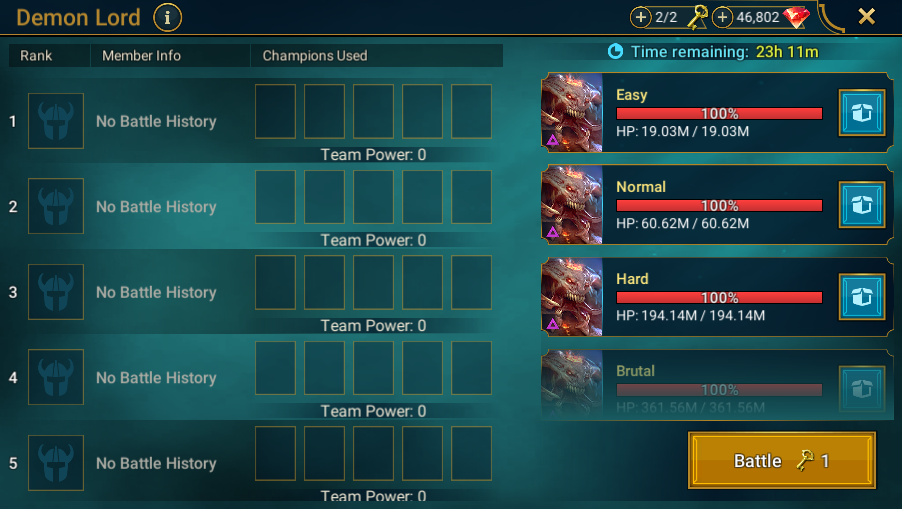
- In Battles → Demon Lord → Manage, inspect Keys: each key's difficulty/affinity and the next key.
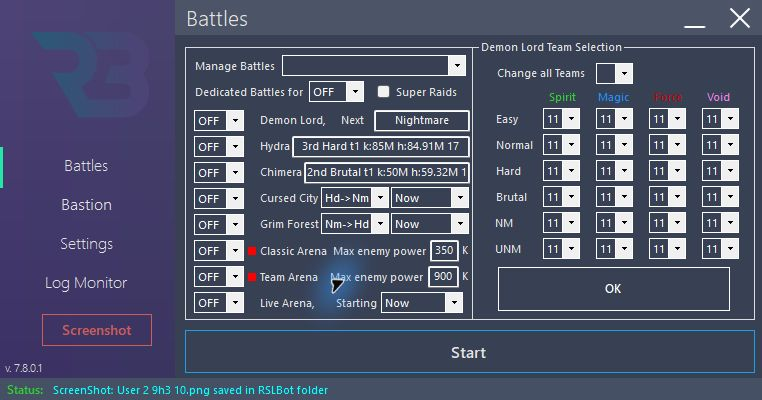
- Inspect Teams: team number depends on both difficulty and affinity. One Keys entry does not prove that every affinity is configured.
- Compare the number with RAID's saved teams.
- Leave Repeat last Key OFF and Quick Battle unchecked for documentation.
- In RAID, display the next key's difficulty and team preparation without launching the battle.
Repeat last Key can keep using the last target after the planned sequence. It is not a key limit. Compare Wait status or an inherited counter with the account's actual state before resuming.
RSLBot GUIDE
Hydra
Hydra is included in Premium, and may temporarily be offered through the Regular rotation. It is not part of the Free rotation in the current version.
Understand the three keys
| Field | Purpose |
|---|---|
| Mode | Difficulty or behaviour configured for this key. |
| Team | Team number to use. |
| Keep | Minimum damage required to keep the attempt according to the configuration. |
| Best | Recorded best score; not a second objective. |
| Tries | Tracked attempt count; not, by itself, an attempt limit. |
| Turn off | Disable Hydra after the configured keys. |
| AutoSell | Apply equipment configuration after Hydra; check Simulation separately. |
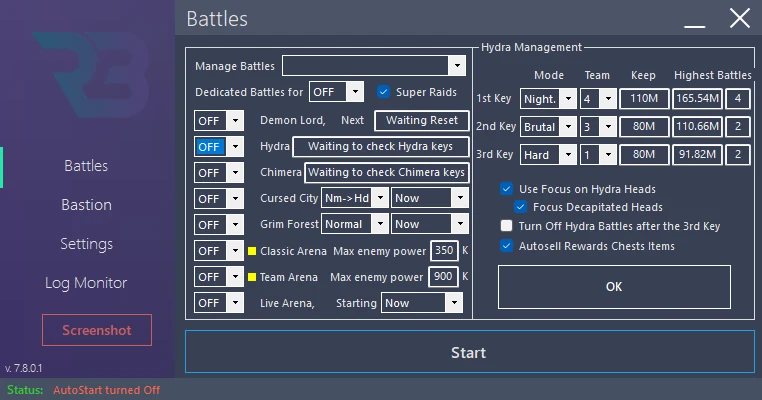
Configure a key without using it
- Open Battles → Hydra → Manage, module OFF.
- Prepare a key with an accessible difficulty and its corresponding saved team.
- Set a realistic Keep threshold for that team. An excessive target can cause many retries.
- Review head targeting and options concerning decapitated heads. Team skills and presets must be configured in RAID.
- Disable other keys for the example, along with real selling after Hydra.
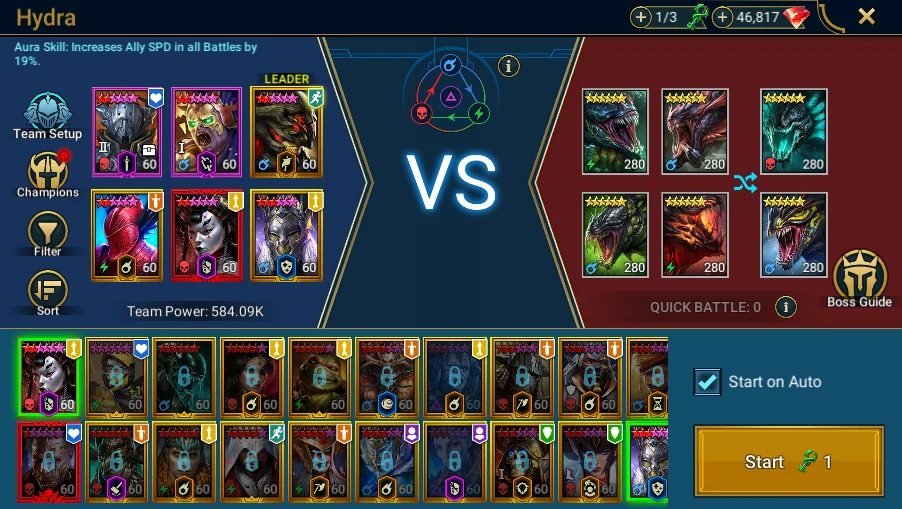
- Open the same difficulty and team selection in RAID without launching the battle.
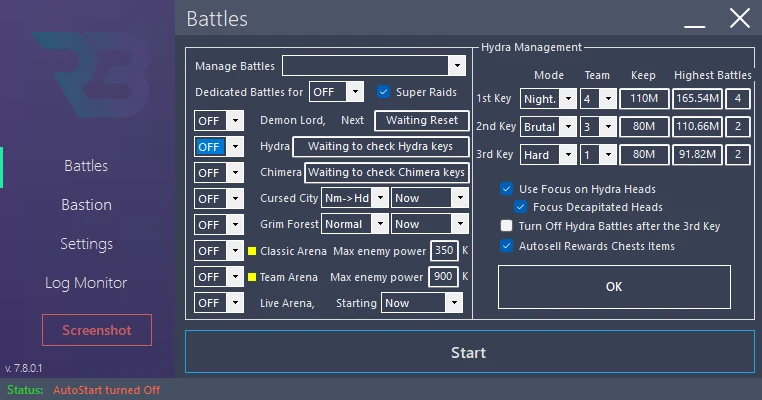
Do not present a previous session's Best entry as a result obtained for the guide. Check champion availability and available keys in the game before real use. No Hydra battle is needed to illustrate the panel.
RSLBot GUIDE
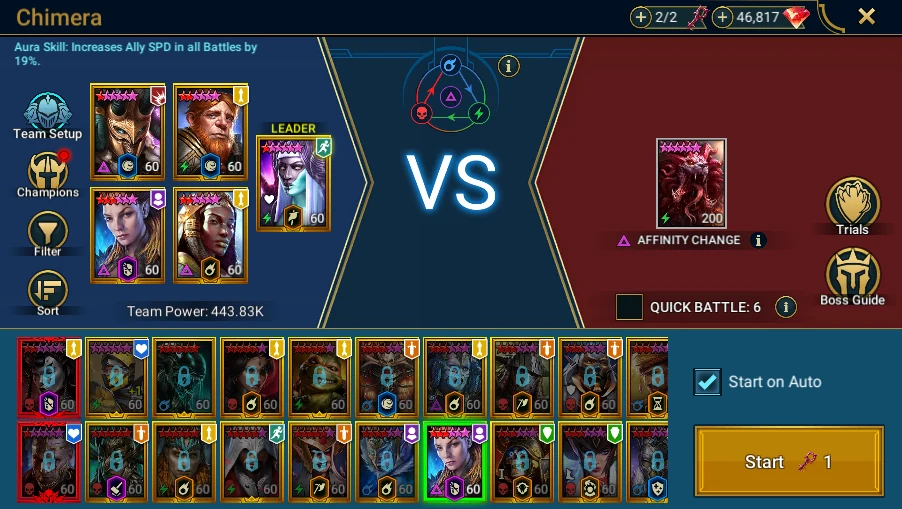
Chimera
Chimera is included in Premium, with a possible rotating promotion for Free or Regular.
Damage and trials: two separate conditions
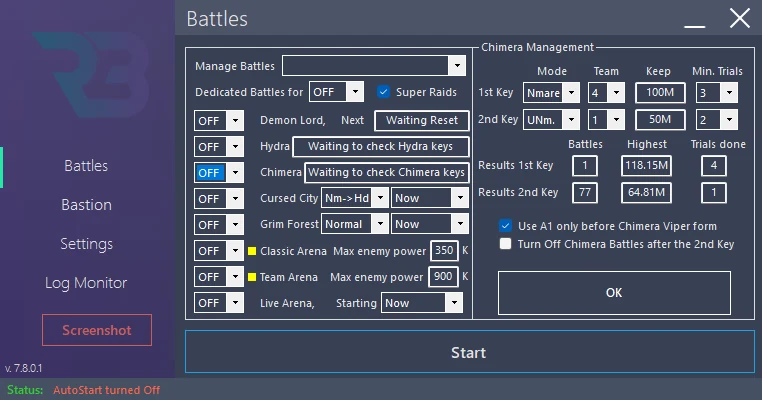
For each of the two keys, check mode, team, Keep and the minimum completed trials. The current logic keeps an attempt when damage reaches Keep and the trial minimum is met, if it is greater than zero. When the minimum is zero, that second condition is not required.
Best, Tries and the recorded maximum completed trials are tracking information. Do not confuse completed-trial count with a maximum attempt count. This guide does not assume an automatic retry cap defined by these counters.
Prepare a key
- Open Battles → Chimera → Manage, module OFF.
- Choose difficulty and team number.
- Set Keep and minimum trials based on a genuinely validated team.
- Review Turn off after keys and the Viper option.
- Compare with preparation for the same battle in RAID; do not launch the key to obtain an image.
Viper enables special handling in which RSLBot temporarily leaves auto mode to use the basic attack on the relevant turns. Check compatibility with your presets and team rotation before real use.
Reset resets tracked scores and the bot's wait; it does not return a spent key. No score or trial was produced during this documentation.
RSLBot GUIDE
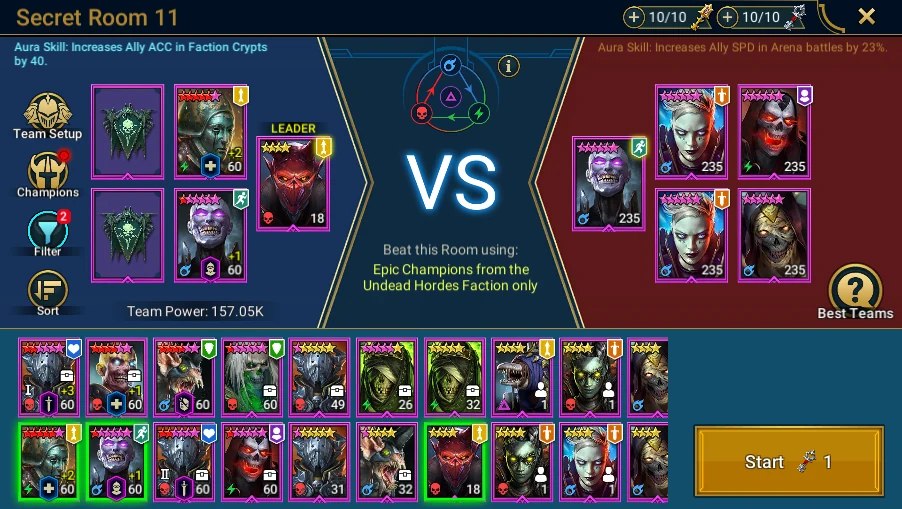
Doom Tower
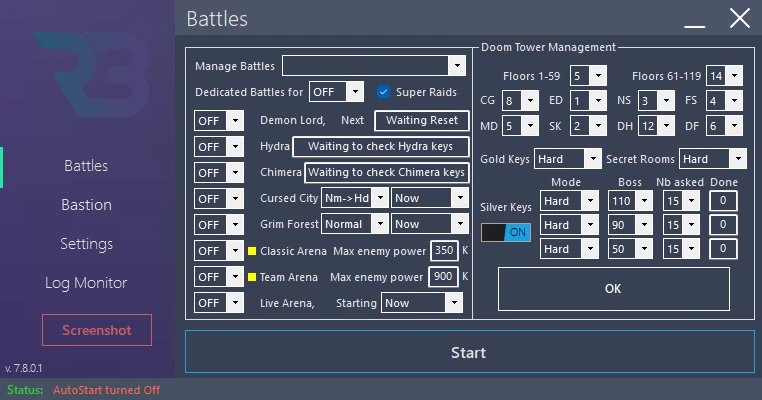
RSLBot can manage gold keys, silver keys and Secret Rooms according to the licence and configuration.
You can assign teams to floor groups and bosses. An empty team selection may reuse the last game team, but an explicit team is more reliable for difficult bosses.
For silver keys:
- choose the boss;
- choose the team;
- set the number of keys to use;
- check the completed counter.
Secret Rooms can use champion selections and the main vault. Restrictions vary by room: check the first execution after each rotation.
Organise the uses separately
- Open Battles → Doom Tower → Manage and check difficulty and start time.
- Configure gold-key mode and teams for floor groups/bosses.
- For each silver-key objective, check Mode, Floor, Nb, Done and the relevant boss team.
- Configure Secret Rooms separately: their champion restrictions differ from ordinary floors.
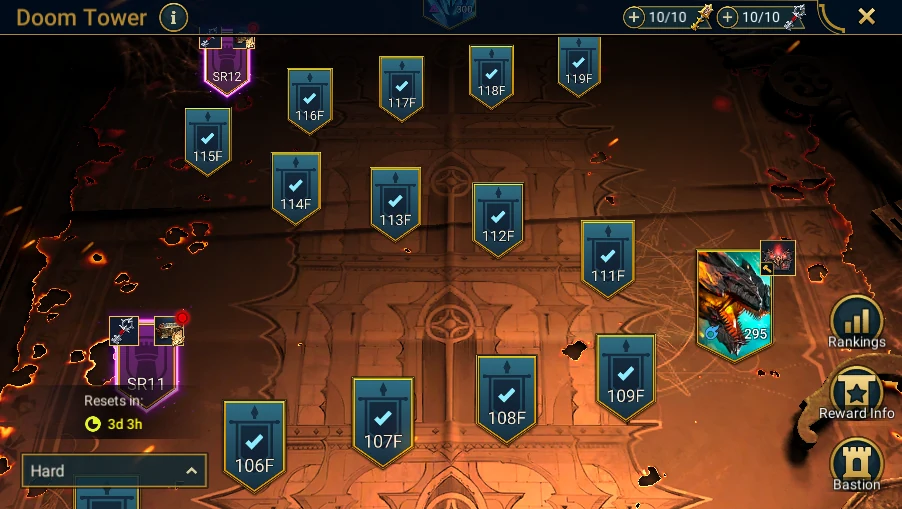
- In RAID, open the same difficulty's map, then a boss or Secret Room preparation to check the destination without starting.
The silver-key Done counter is historical. A boss unavailable in the current rotation does not become accessible by changing Floor in RSLBot. After a reset, check boss/team correspondence before resuming.
This feature is included in Regular/Premium, and may temporarily be offered to Free through rotation.
RSLBot GUIDE
Faction Wars
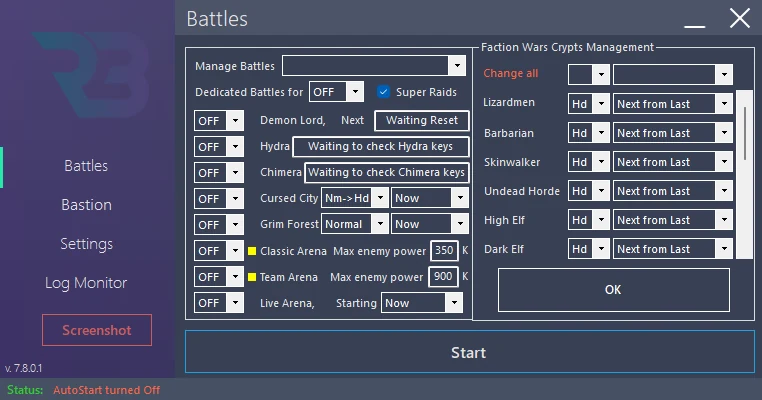
Configure each faction separately: stage, battle mode and team. A global configuration can speed up common changes.
Account for Advanced Quests requiring a boss or a champion of a particular rarity. A faster, reliable stage is often preferable to the highest stage if the objective is simply to use the keys.
The module indicator distinguishes, among other states, waiting for the start time, current activity and exhausted keys.
Configure crypts
- Open Battles → Faction Wars → Manage, module OFF.
- Choose mode, stage and intended team for each faction used.
- Change All applies a mode to the crypts: this shortcut does not prove that every stage and team is suitable.
- Check start time and any Advanced Quest requirements.
- In RAID, compare with a crypt open today, then with preparation for the selected stage.
A crypt closed by the schedule must wait. If the example faction is not open, record that blocker and choose an available crypt with matching settings at the next session, without editing an image.
The feature is included in Regular/Premium, with possible rotating promotion for Free.
RSLBot GUIDE
Classic Arena
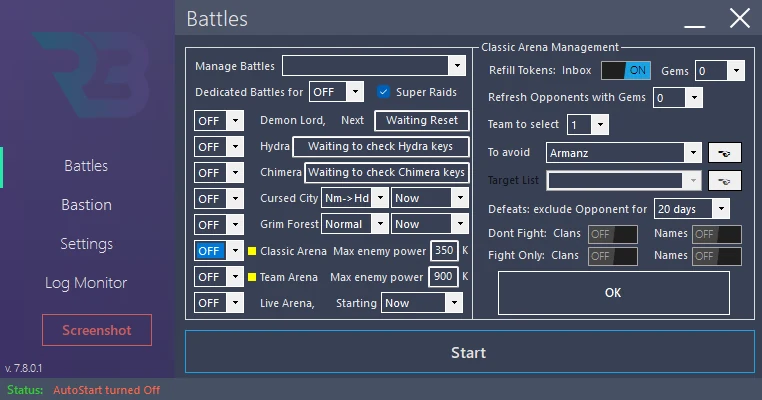
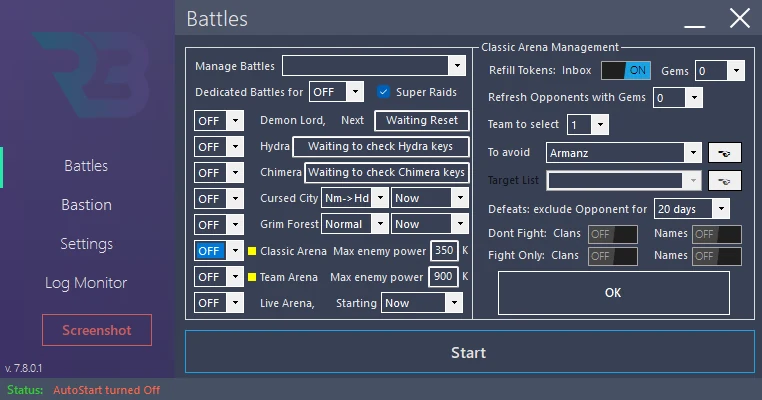
RSLBot can filter opponents by power, use refills, refresh the list and temporarily remember teams that defeated you.
Advanced options allow, depending on the licence:
- avoiding certain players or clans;
- targeting certain players or clans;
- retaining losses for a configured period;
- using Inbox refills;
- limiting gems spent on tokens or refreshes.
Name recognition uses OCR. Special characters, icons and some spacing can yield several readings of the same name. Check logs before adding a variant to a list.
Prepare selection
- Open Battles → Classic Arena → Manage, module OFF.
- Choose your saved team and a suitable power limit. Displayed power is a filter, not a victory guarantee.
- Check any special teams configured for affinities.
- Set token reserves, Inbox refills and gem limits. For Documentation-FR: no refills or paid refreshes.
- Review champion fight/avoid lists (Regular/Premium) and player/clan lists (Premium).
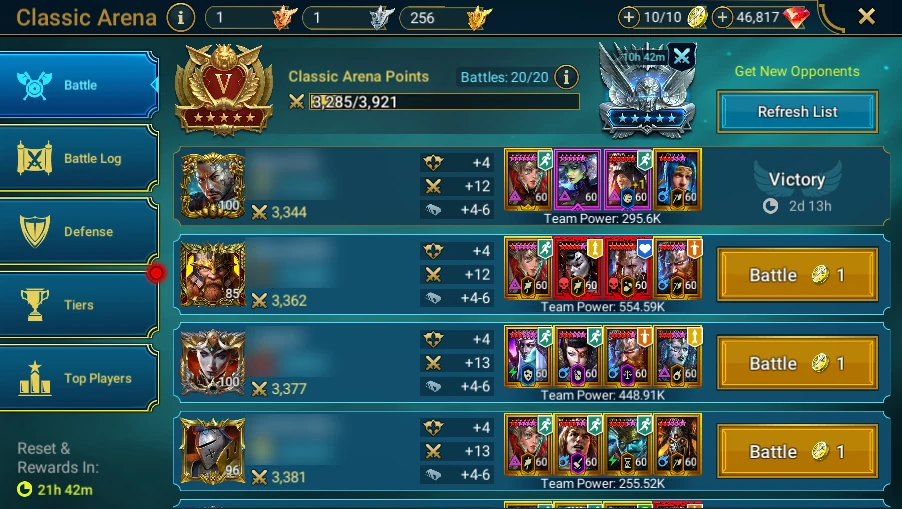
- In RAID, display the opponent list without Battle, paid Refresh or Revenge.
Target List controls disabled in the production version are not presented as usable. Opponent and clan names must be masked in published screenshots. A retained loss list can explain why an opponent is avoided; check its duration before clearing it.
RSLBot GUIDE
Tag Team Arena
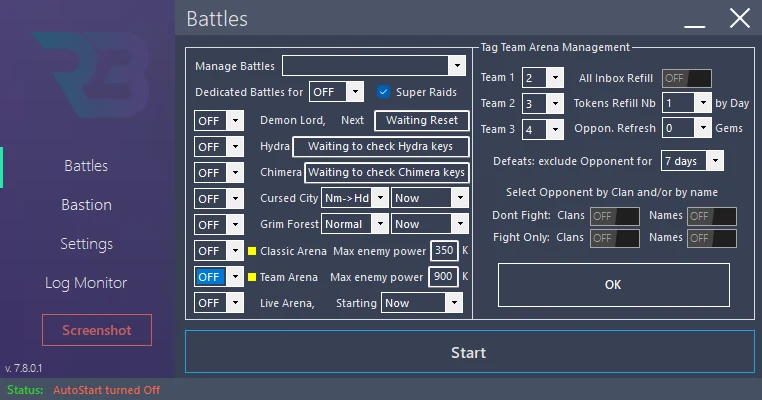
Tag Team Arena is included in every offer. RSLBot can manage the three teams, opponent selection, refills and refreshes according to available settings.
Prepare the three teams
- Open Battles → Tag Team Arena → Manage, module OFF.
- Check Team 1, Team 2 and Team 3 separately. A number alone does not define all twelve champions.
- Review power limits and the available opponent filters.
- Check Inbox tokens and gem limits for refills/refreshes.
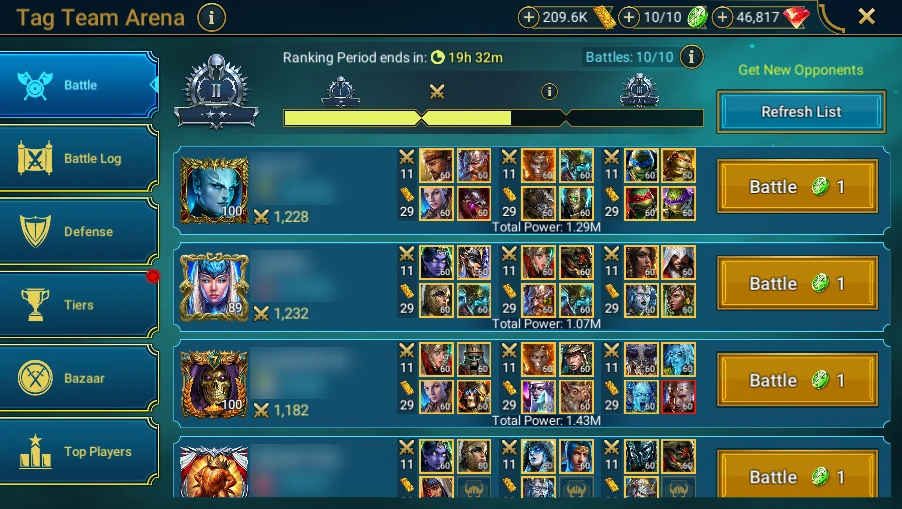
- Compare with the in-game Tag Team list and three preparation teams without starting the series.
Player/clan lists are Premium; champion filters depend on enabled Regular/Premium features. An uncertain OCR reading should be checked in the log before adding name variants.
A series involves several battles and spends a token. For screenshots, keep settings stopped, do not start a revenge and mask all player/clan names.
RSLBot GUIDE
Live Arena
Live Arena is included in Premium and may temporarily be available through the Free or Regular rotation.
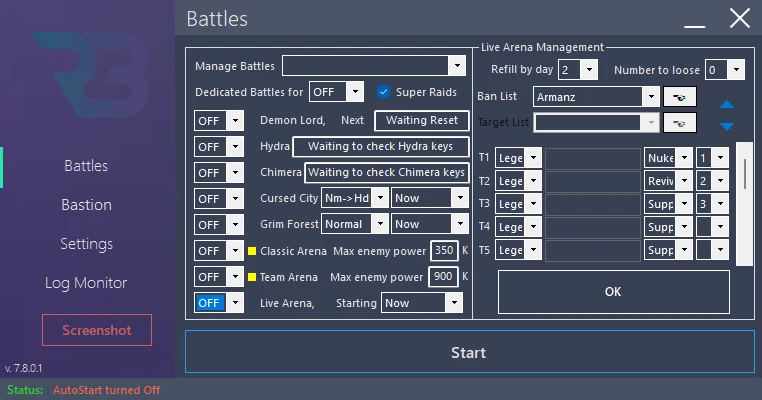
Configure:
- battle or refill count;
- any initial loss streak;
- starting champions;
- substitutes;
- replacement categories;
- leader priority;
- champions to avoid or ban.
When a starting champion is unavailable, RSLBot searches for a compatible substitute in the same category. Substitute order therefore matters.
Leader priority applies to starters actually present in the final team. Test several selections before leaving the feature unattended.
Prepare selection without matchmaking
- In Battles → Live Arena → Manage, leave the module OFF.
- Review T entries (starters), S entries (substitutes), categories, rarities/affinities and leader priorities.
- Check the ban list and battle/refill limits.
- Leave any initial loss streak disabled unless that behaviour is intended; it is not a necessary setup step.
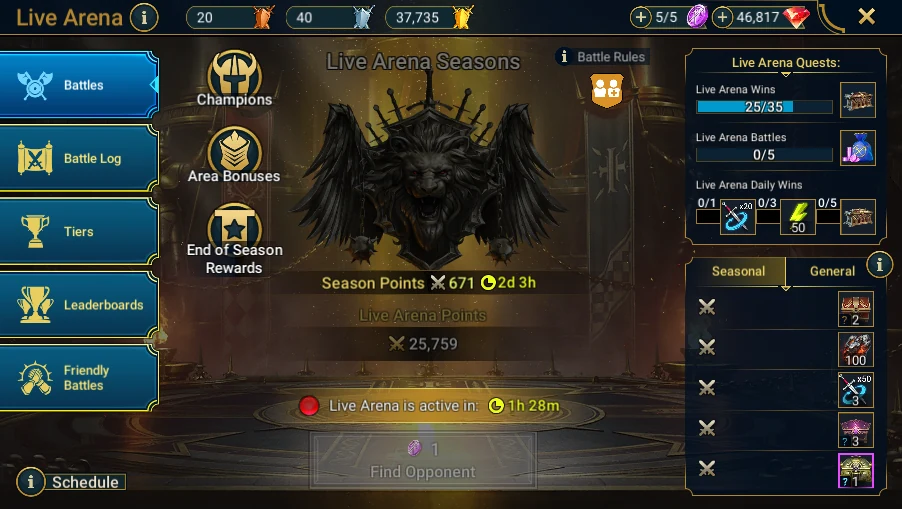
- In RAID, open only the Live Arena landing screen and its opening times.
Arrows change champion order: do not use them without a backup simply to photograph a panel. Target List controls are disabled in the current production version.
A draft screenshot is accepted only when a real session, decided independently, is already running. Do not start matchmaking for the guide: it engages another player and account resources. The landing screen is sufficient as this version's RAID view.
RSLBot GUIDE
Cursed City
Cursed City is included in Premium; the Free and Regular rotations may add it temporarily.
RSLBot can find available stages, manage difficulty transitions and select champions from the main vault when configured.
Stage restrictions may change. Check the first champion selection and difficulty transition after each rotation.
Autosell after battle has its own settings. Check that the intended rule file is the one used for Cursed City.
Check the route
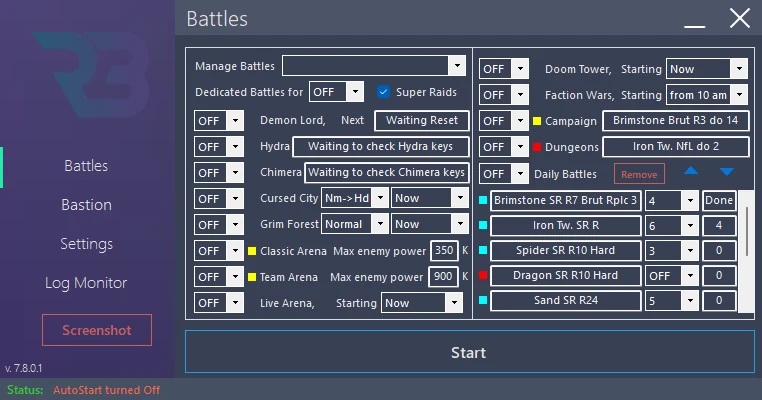
- In Battles, open Cursed City settings and check difficulty mode and start time.
- Review champion-selection and main-vault options.
- Check Autosell for this activity and keep all real selling OFF.
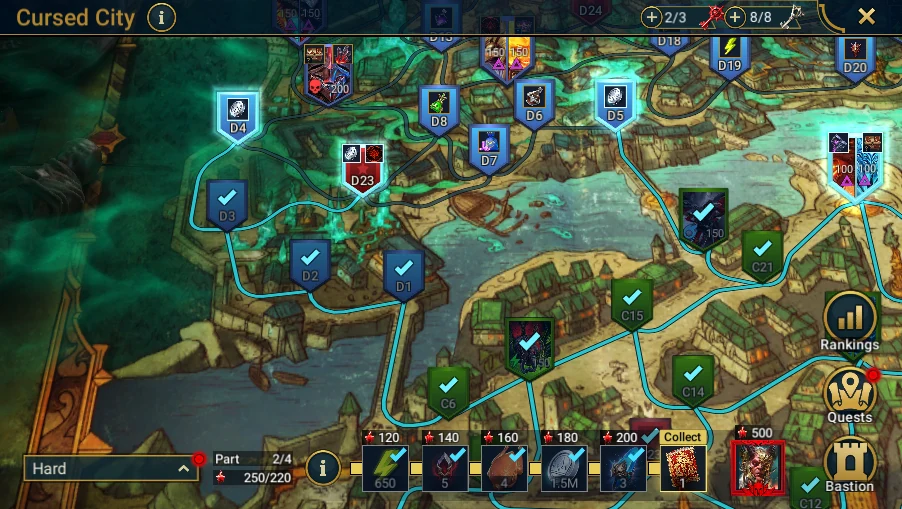
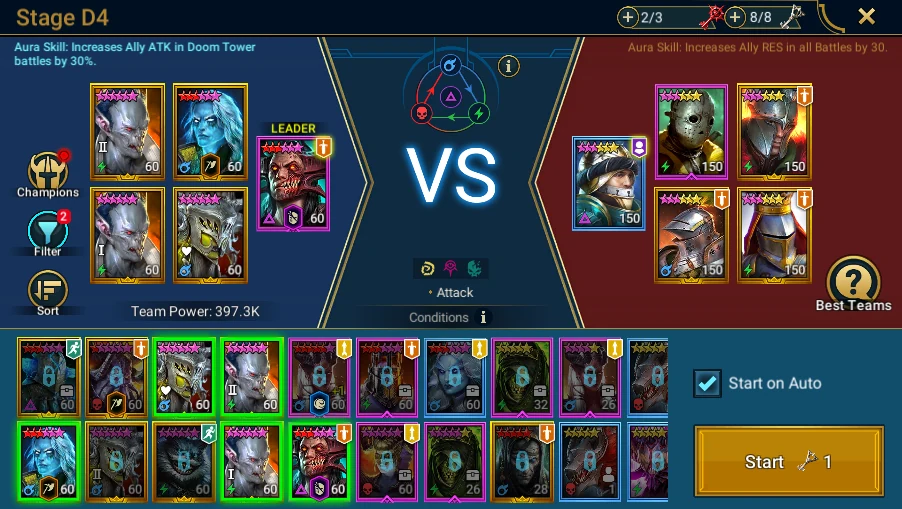
- In RAID, display the same difficulty's map, then an accessible stage and its restrictions.
- Compare stage conditions with champions the bot can actually select.
A rotation change can make a previous route or team unsuitable. Diagnose an unavailable tile or unmet restriction instead of trying to bypass it through repeated launches. No battle is needed to document the map and restrictions.
RSLBot GUIDE
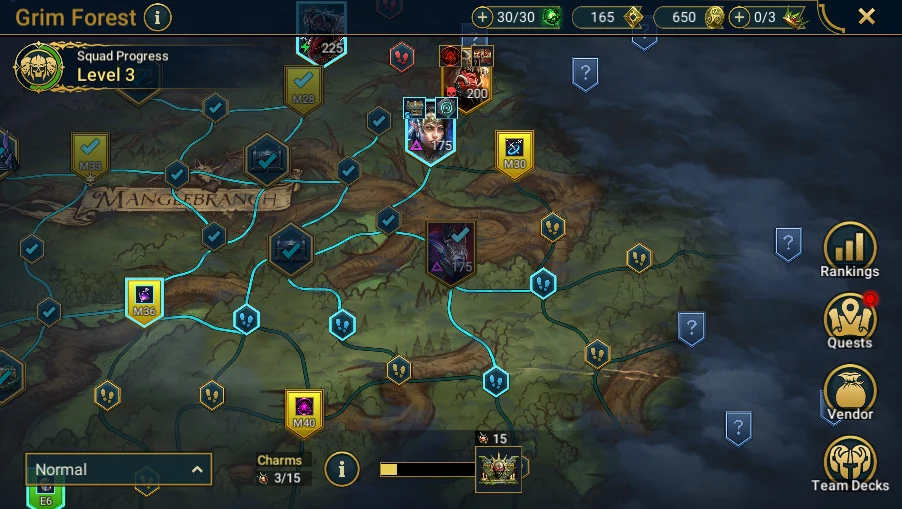
Grim Forest
Grim Forest is in alpha, available with every licence during testing. It is intended to become Premium-only after this phase. Check release notes before each new session; this recent mode's behaviour may evolve.
Difficulty and route
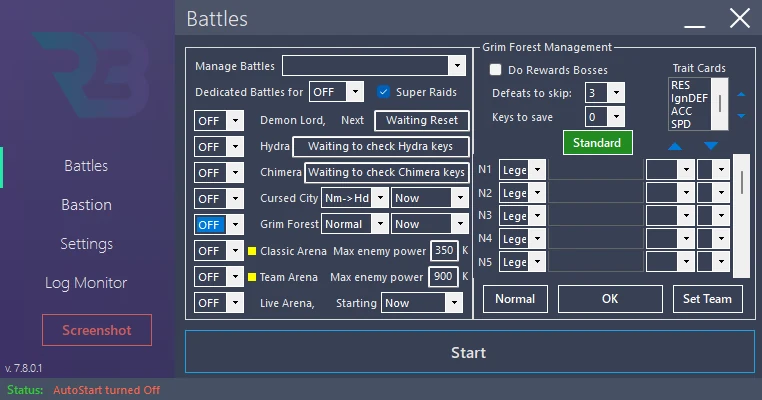
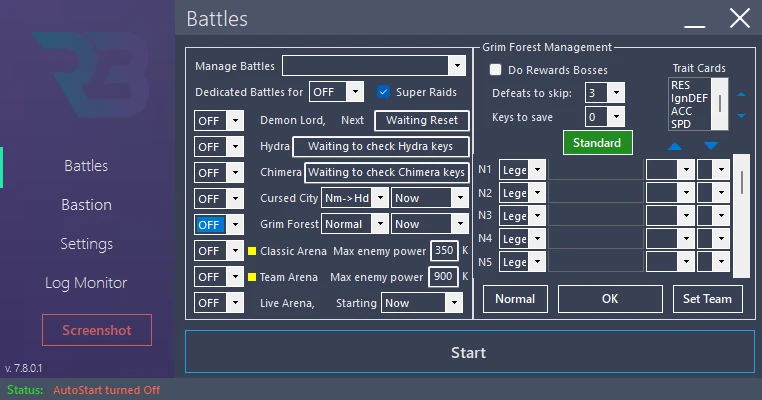
In Battles → Grim Forest → Manage, choose Normal or Hard and, when available, the Normal → Hard or Hard → Normal order. Switching difficulty happens when the first offers no further action and the key conditions allow continuation; it is not a promise to finish both maps.
Check the key reserve, consecutive defeats before skipping a stage, and boss reward option. The map is centred from the last location fought: do not launch a battle merely to change that starting point for a screenshot.
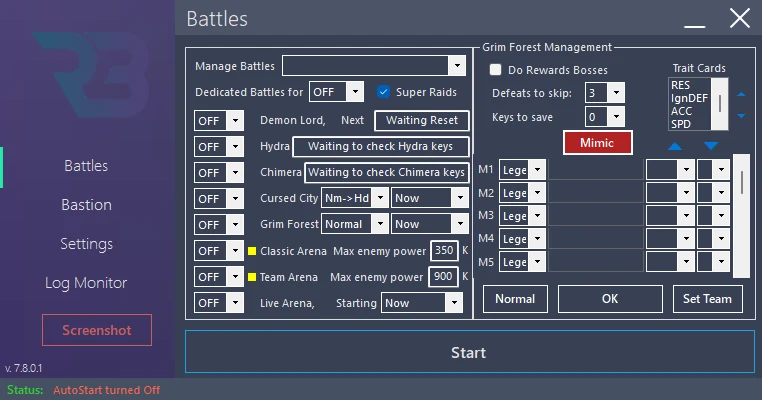
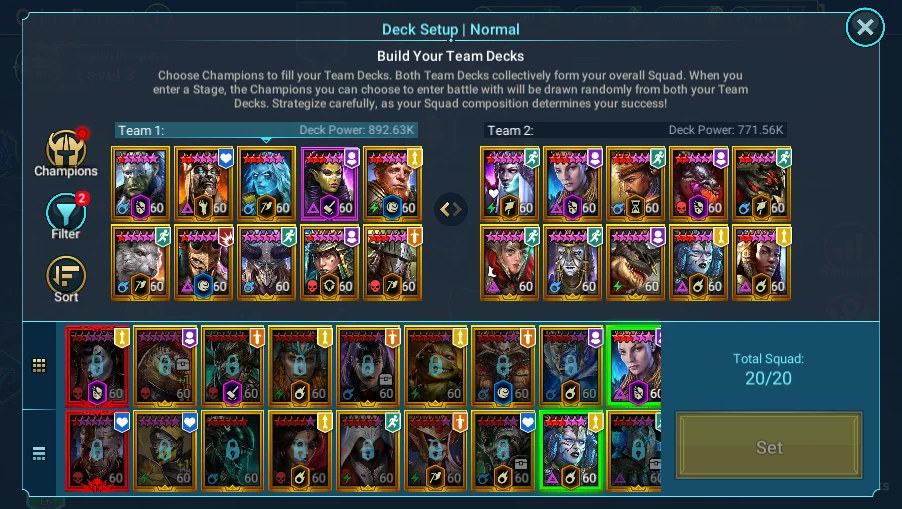
Normal and Hard teams, Standard and Mimic profiles
- Open team management for the required difficulty.
- In Standard, check starters, substitutes, filters and leader priorities.
- In Mimic, check the order and composition used against the Mimic.
- Standard and Mimic share the same champion pool for that difficulty; their starter and substitute order may differ.
- Use arrows to organise a selected row only after saving. The Mimic profile is used for Mimic stages, not all stages.
Set Team: read or write the deck
This command is not simply a view button. With the bot stopped, open Grim Forest → Deck Setup in RAID, using the same difficulty as the bot panel.
- Yes reads the deck displayed in the game into RSLBot.
- No fills the game deck from the RSLBot configuration when editing is possible.
- Cancel performs no synchronisation.
When the deck cannot be edited, only reading may be offered. Any optional list reset is a change that must be explicitly decided. For documentation, show the button and deck; do not synchronise or change champions.
Trait-card priorities
Order the listed statistics according to your team's needs. The bot sums the ranks of statistics offered by a card: the lowest total has priority. On a tie, the highest-priority statistic breaks the tie. It is not a rule in which the card with the largest total wins.
Capture trait cards only if that choice is already naturally present on the account. Do not start a stage to trigger it.
RSLBot GUIDE
Glossary
| Term | Meaning |
|---|---|
| Bastion | RAID's main screen and RSLBot's general-management tab. |
| Daily Battles | An ordered list of individually configured daily battles. |
| Dedicated Battle | A temporary mode focusing RSLBot on one activity. |
| OCR | Text recognition used to read some displayed information. |
| Replay | Repeats an already selected stage. |
| Super Raids | A game mode spending more resources to speed up rewards. |
| Starter | A prioritised champion in an automated selection. |
| Substitute | A champion chosen when a starter is unavailable. |
| Autosell | Applying rules to automatically sell artifacts or accessories. |
RSLBot GUIDE
Troubleshooting
RSLBot cannot find the game
- Check that the game is running and has reached the Bastion.
- Check that RAID was launched from Plarium Play.
- Check that the game window is not minimised.
- Check 100% scaling on the monitor displaying the game.
- Restart the game, then RSLBot.
RSLBot clicks in the wrong place
- Check resolution and display scaling.
- Check that no window covers the game.
- Return to the Bastion before restarting.
- Save a screenshot with Screenshot.
RSLBot loops
- Press Pause.
- Note the time and last Log Monitor message.
- Capture the game and RSLBot.
- Check for an offer, maintenance or event window.
- Restart only after preserving diagnostic information.
An activity does not start
- Check that it is ON.
- Check its start time.
- Check its priority position.
- Check available keys, tokens or energy.
- Check that the feature is included in the active licence.
- Check that a dedicated mode is not blocking the normal cycle.
Prepare a support request
Send:
- the exact RSLBot version;
- Plarium Play and RAID versions;
- resolution and scaling;
- problem time;
- expected action;
- the latest relevant log excerpt;
- a screenshot obtained with Screenshot.
Mask the licence key, email address and other private information.
A control is greyed out or missing
Check the offer and the period's extra feature. A temporarily available module may disappear at the next rotation. Target List controls disabled in production and market artifact purchasing should not be treated as faults to bypass.
Sign-in waits or reports another computer
Record the exact message. A RAID server outage may cause a wait; do not erase configuration or repeatedly reconnect. Used on another computer concerns taking over a licence: its owner must decide the transfer. Authentication, 2FA and CAPTCHAs remain human interventions.
Clicks do not work in a VM
Stop repeating attempts and note the current screen and mouse/keyboard command mode. Check window control and capture separately. A tool can read the screen without its clicks executing. A session on the main PC can be used to retake screenshots; it does not itself prove that every game profile works.
Unexpected equipment or team
Check the loaded profile, in-game team number, difficulty/affinity and replacement rules. For equipment, record the rule file and scope (after battle, storage or Inbox), then return to Simulation. Do not try to correct selection by starting a sale, summon or rank upgrade.
Logs to send
Attach a log excerpt limited to the problem period instead of the account's full history. Mask identifiers, keys, player/clan names and personal paths. Screenshot produces the RAID view; add a separate RSLBot screenshot so support can see the setting used.